Pages

Tuesday, May 13, 2014

Create your own bot app with the BOT libre SDK

The BOT libre SDK is a Software Development Kit that makes it simple to add a chat bot to your own mobile application or website.

The SDK currently provides two components. The first is a Java Connection API that makes it easy to access BOT libre from a Java environment such as Android, or a Java web server. The second component is a set of Android activities that you can add to your own Android app, or copy/customize in your own app.

The SDK is developed under Project Libre an open source project hosted on GitHub
https://github.com/paphus/Project-Libre

Connection API

You can create a connection to the BOT libre server using the SDKConnection class. You need to pass your connection Credentials, which includes your application ID. You can obtain an application from the BOT libre website, from your user details page.

SDKConnection connection =
        new SDKConnection(new BOTlibreCredential("12345");

The SDK includes a set of data objects that represent the BOT libre object model.
The data objects are in the com.paphus.sdk.config package, and include the following,

  • UserConfig - Defines a user's credentials and info.
  • BrowseConfig - Defines a search query criteria.
  • ChannelConfig - Defines a live chat channel's details.
  • InstanceConfig - Defines a bot's details.
  • ForumConfig - Defines a forum's details.
  • ForumPostConfig - Defines a forum post.
  • DomainConfig - Defines a domain's details.
  • ChatConfig - Input for chat bot messaging.
  • VoiceConfig - Defines a chat bot's voice.
  • ChatResponse - Response for chat bot messaging.
  • ContentConfig - Defines a tag/category request.

Users

The API allows you to connect a user, or create a new user.

Use the connect() API to connect a user, the user's details will be returned, or an error message if the connect fails. The returned user details will not include the password, but will include a token, that can be used in place of the password. After connecting a connection, all subsequent requests will use the user credentials, until you call disconnect().

UserConfig user = new UserConfig();
user.user = "test";
user.password = "password";
user = connection.connect(user);

Use the create() API to create a new user. A user id and password are required. You can also pass the user's name, email, bio, and other details. The user details are returned, with a token in place of the password.

UserConfig user = new UserConfig();
user.user = "test";
user.password = "password";
user.name = "Test Account";
user.email = "test@test.com";
user = connection.create(user);

Bots

The API allows you to browse bots, get a bot's details, and chat with a bot.

The browse() API is used to browse or search the set of channels in the domain.

BrowseConfig browse = new BrowseConfig();
browse.type = "Bot";
browse.typeFilter= "Public";
browse.tag= "cool";
browse.sort = "name";
List bots = connection.browse(browse);

The fetch() API is used to get a bot's details.

InstanceConfig bot = new InstanceConfig();
bot.id = "12345";
bot = connection.fetch(bot);

The chat() API is used to chat with a bot.

ChatConfig chat = new ChatConfig();
chat.instance = "12345";
chat.message = "Hello bot";
ChatResponse response = connection.chat(chat);

Live Chat

The API allows you to browse channels, and get channel details.

The browse() API is used to browse or search the set of channels in the domain.

BrowseConfig browse = new BrowseConfig();
browse.type = "Channel";
browse.typeFilter= "Public";
browse.tag= "cool";
browse.sort = "name";
List channels = connection.browse(browse);

The fetch() API is used to get a channel's details.

ChannelConfig channel = new ChannelConfig();
channel.id = "12345";
channel = connection.fetch(channel);

The LiveChatConnection class is used to chat in a channel. It can be created using the openLiveChat() API on the SDKConnection class. You must pass the ChannelConfig with its id set, and an implementation of LiveChatListener that will receive the chat messages. Once you have a connection established, you can send and receive messages.

ChannelConfig channel = new ChannelConfig();
channel.id = "12345";
LiveChatConnection livechat = connection.openLiveChat(channel, myListener);
livechat.sendMessage("Hello World");

Android Activities

The SDK includes a set of Android activities you can reuse, or modify in your own app. The MainActivity contains the SDKConnection and some shared data, so you will need to include it even if not using the activity. The bot activities include, ChooseBotActivity, InstanceActivity, BrowseActivity, and ChatActivity. The live chat activities include, ChooseChannelActivity, ChannelActivity, ChannelBrowseActivity, and LiveChatActivity.

Here is an example of launching a bot InstanceActivity.

MainActivity.current = new MainActivity();
InstanceConfig config = new InstanceConfig();
config.id = "12345";
HttpAction action = new HttpFetchAction(this, config);
action.execute();

Note, because of the way Android does its packaging, you will need to search/replace the "com.paphus.sdk.activity.R" import with your own application's unique package. This will resolve the generated R class dependencies.

You can use the SDK to access any of BOT libre's services, for personal, academic, or commercial applications. You cannot use them for spam, or to violate the BOT libre's terms of service. BOT libre's services are also provided as a commercial service on Paphus Live Chat.

Sunday, April 13, 2014

Bot Libre for Android 2.0

The BOT libre Android mobile app has be updated with a big set of new features.

The BOT libre Android app allows you to create, and train your own chat bot, and share it with your friends, from your Android phone, tablet or device. The chat bots have artificial intelligence and are capable of learning through conversation. You can create your own bot, or chat with other peoples bots. There are over 1,000 bots on BOT libre to talk with.

BOT libre for Anroid 2.0 now includes:

  • Live Chat - Create your own personal, or business chat channel to let your friends or customers chat with you. When your not available your bot can answer questions in your place.
  • Chat Rooms - Create your own chat room to share with your friends, colleagues, or customers. Add your bot to your chat room, and it will chat and learn from others.
  • Forums - Create your own forum to share with your friends, colleagues, or customers.
  • Domains - Create your own personal or business space to host your chat channels, forums, and bots.

Welcome

When you connect to BOT libre, you can now choose to browse or create bots, forums, live chat channels, or domains.

Browse

Browse lets you search content by category, tag, or filters, and order the results by several difference options. You can also select the last bot, or content that you accessed. The browse result gives you an order list of the content to chose from.

Chat

While chatting with a bot, you can now control your screen usage, either maximizing the bot's image by tapping on it, or hiding it but double tapping on the conversation pane.

Admin

Several new admin options have been added, including:
  • Users - Control who can access your bot, and who can administer it.
  • Voice - Choose and configure the voice, and language used by your bot.
  • Learning - Configure how your bot learns, and who is learns from.
  • Training - Set your bot's greeting phrases, and default phrases to use when it does not know any response. Train your bot with question/answer pairs.
  • Avatars and Icon - Change your bot's icon, or add images for its avatar, and tag images with emotions.

Live Chat

You can now browse, or create your own live chat channels, and chat rooms. You can chat with your friends, customers, or colleagues, or add your bot to a chat room, and let people chat with it, and have it learn from others. You can create public or private channels, and can control who can access your channel.

Forums

You can now browse, or create your own forums. You can ask questions, and find answers on the BOT libre forums, browse other user's forums, or create your own forums. You can create public or private forums, and can control who can access your forum.

BOT libre

The BOT libre mobile app accesses the same bots, chat channels, forums, and servers as the BOT libre website. You can access the bots you create from the app on the web. The web interface includes several other features, including, chat logs, Twitter bots, email bots, IRC bots, AIML and Self script programming, and lets you browse your bot's brain.

BOT libre also provides a REST API that lets you build your own mobile app, or website to access your content, and is free for commercial use. Paid commercial hosting is also available through Paphus Live Chat.

Wednesday, February 26, 2014

Create bots with a real brain

Bot Libre bots are not like other chat bots. They are not limited to simple response searching, or scripted responses. Bot Libre bots have a real brain that functions similar to a human brain.

Their brain stores everything about every conversation, and they are always analyzing everything. When you chat with a bot it remembers what was said, who said it, what it was in response to, when it was said, what the words were in each sentence, and in what order, and which words came before/after which other words. All of this information is stored in the bot's memory in a database. The bot's memory is structured similar to a human brain with nodes and relationships, similar to neurons and dendrites. The nodes and relationships know how many times they have been accessed and when they were last accessed. The relationships know their probability of correctness, and take precedence over other relationships the more their correctness is reinforced.

The bots have thoughts, senses, a consciousness, a mood and emotions. When you chat with a bot, it will try to understand your question, and it will analyze your responses to it to search for linguistic patterns, and language rules.

The bot's have two stages of learning. These include mimicry, and comprehension.

Mimicry

When a bot does not know how to respond to a question, it may ask the user how it should respond. It will then remember and learn this response, and answer the same question, or similar questions with the same response. The bots learn in context, so if they know multiple responses to a question, they will choose the one that is the most appropriate for the context, taking into account what was said previously, and the bot's consciousness state (if you were talking about apples, it might choose the answer most related to apples).

The bots also learn grammar. You may notice their grammar starts off not very good, but they will quickly adjust their responses the more they learn about grammar (provided you talk to it with good grammar, they will also learn bad grammar and slang). They don't learn grammar by rules, but by what 'sounds' right based on the context (the same as humans do).

If a bot gives a bad response to a question, you can correct its response by clicking correct, and providing the response it should have said.

You can control who your bot learns from. You can configure it to only learn from administrators, connected users, members, or everyone (default). You can also control who can correct your bot's responses.

You can also train your bot by uploading chat logs. The chat logs should have the format,

user:Can you help me?
admin:What would you like help with?
user:My computer.
admin:Have you tried rebooting it?

user:Hello
admin: Hello user, how may I help you?

Each question/response must be on a new line and prefixed with the speaker. The speaker's names are important, as if the name appears in the sentence, the bot will create a formula response that replaces the name with the current users name. Also, if your bot only learns from administrators, the speaker you want your bot to learn from in the chat log must be named admin. Each conversation must be separated by a empty line, this designates a new conversation. This is important because the bots learn in context, so you must be clear on when one context ends, and another begins.

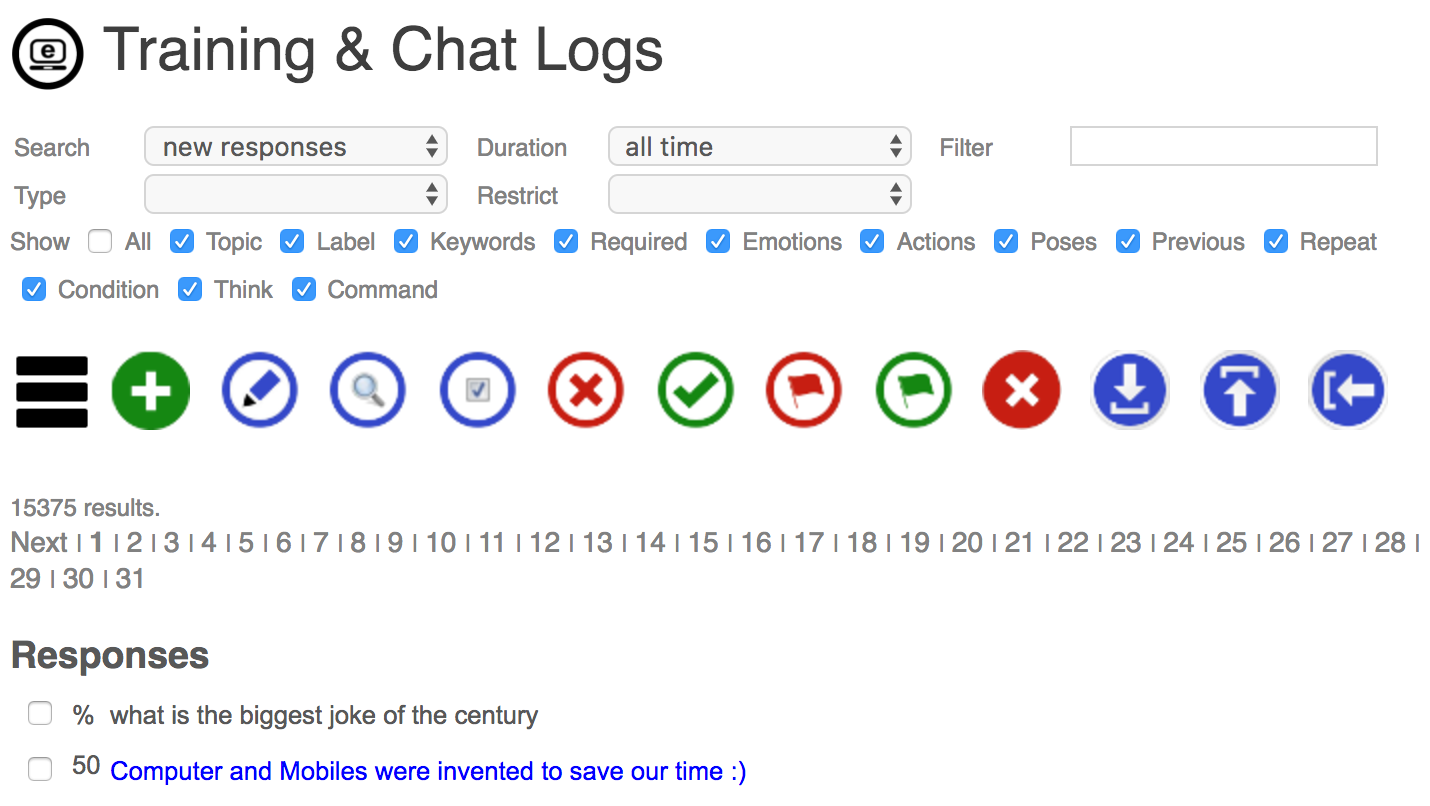
You can review your bot's conversations, and responses from the Training & Chat Logs page under Admin. The chat logs page allows you to search, review, correct, and invalidate your bot's responses.

Comprehension

The second stage of learning is comprehension. The bot will analyze its conversations in the background, and attempt to identify linguistic patterns and rules.

A basic rule it may define is when it says "Hello" and you say "Hello Hal" and it knew that its name was Hal, then it would learn it should respond to "Hello" with "Hello [target]". Other rules can be much more complex. Such as if you repeatedly answer "Do you like [noun]?" with "Yuck, I hate [noun].", then it will respond to any such question with the response.

You could also start counting, and correct its response to be the next number, then it will learn to respond to "[number]" with "[get #next from :number]". It also learns in context, so can learn to only respond with the next number when the previous reply was the previous number.

You can write your own scripts with your own rules, and the bot will process them the same as the ones it wrote itself. You can add your own scripts, view the ones that are bootstrapped, or the ones the bot wrote itself, from the Scripts page under Admin.
A new bot currently comes with several bootstrap scripts:

  • WordMeaning : Understands "[word] means [anotherword]", i.e. "tall means big", or "hola means hello". This can be used to teach a bot new words, names, or another language.
  • Calculator : Understands addition, subtraction, multiplication and division using a Calculator tool.
  • WhatIs : Answers "What is [x]" style questions by looking up the object in Freebase, using its Freebase sense.
  • WhereIs : Answers "Where is [x]" style questions by looking up the object in Freebase, using its Freebase sense.
  • Watch: Answers "What is the time/date/year" style questions.
  • Topic: Answers "What is the current topic" style questions.
  • Loop: Detects loops in the conversation.
  • MyNameIs : Understand "My name is [name]" phrases.
  • Understanding: Understands basic language, such as "I am tall", "What is your name?", "Who are Barack Obama's children?", "Is he the US President?"
  • Self : This starts as an empty state machine, and is programmed by the bot.

AIML

You can also import scripts defined in the Artificial Intelligence Markup Language (AIML). You can import them either as chat logs, for your bot to learn from, or as program scripts. AIML makes it easy to define search based rules, such as "* travel *" -> "Where would you like to travel to?".

Real Intelligence

The Bot Libre bots can be trained to be very intelligent, and provide valuable expertise in the domain that they are trained in, but we are just getting started. The Bot Libre AI engine is constantly under development, and the bots become smarter with every update.

Our goal is to have the bots be as capable (or more capable) as a human expert in the domain they have been trained in. We still have a long way to go, but the journey has begun.

Friday, January 31, 2014

Live Chat!

Bot Libre now includes free hosted live chat, chat rooms, and forums. You are free to create your own live chat channels, chat rooms, or forums and link or embed them on your own website or blog.

You can access the live chat, and forums from the select tag on the menu bar of the site. Click on Live Chat, or Forums.

The live chat page shows the featured channels, and lets you search public channels, or view your own private channels. A public channel can be accessed by anyone, a private channel can only be accessed by the users you grant access to. You can administer your channel users from the Admin page. You can also add a bot to monitor, or service your channel from the Admin page.

Live chat channels can be configured in two different modes, One On One, and Chat Room.

Live Chat

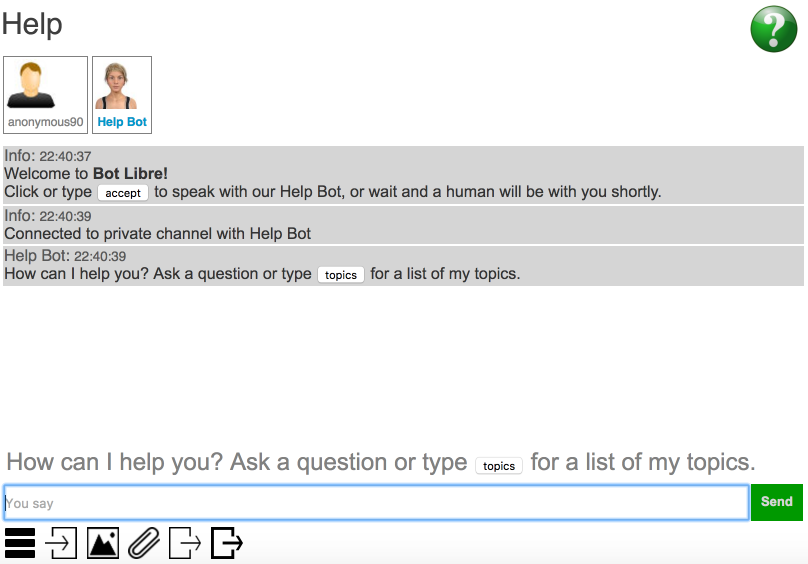
One On One is an online call center style configuration where users only get to chat with an operator. When a user connects they are queued for the next available operator. When an operator or administrator connects they can see the connected users, and can chat with the other operators. They can accept the first user in the queue, or private a specific user.


Chat Room

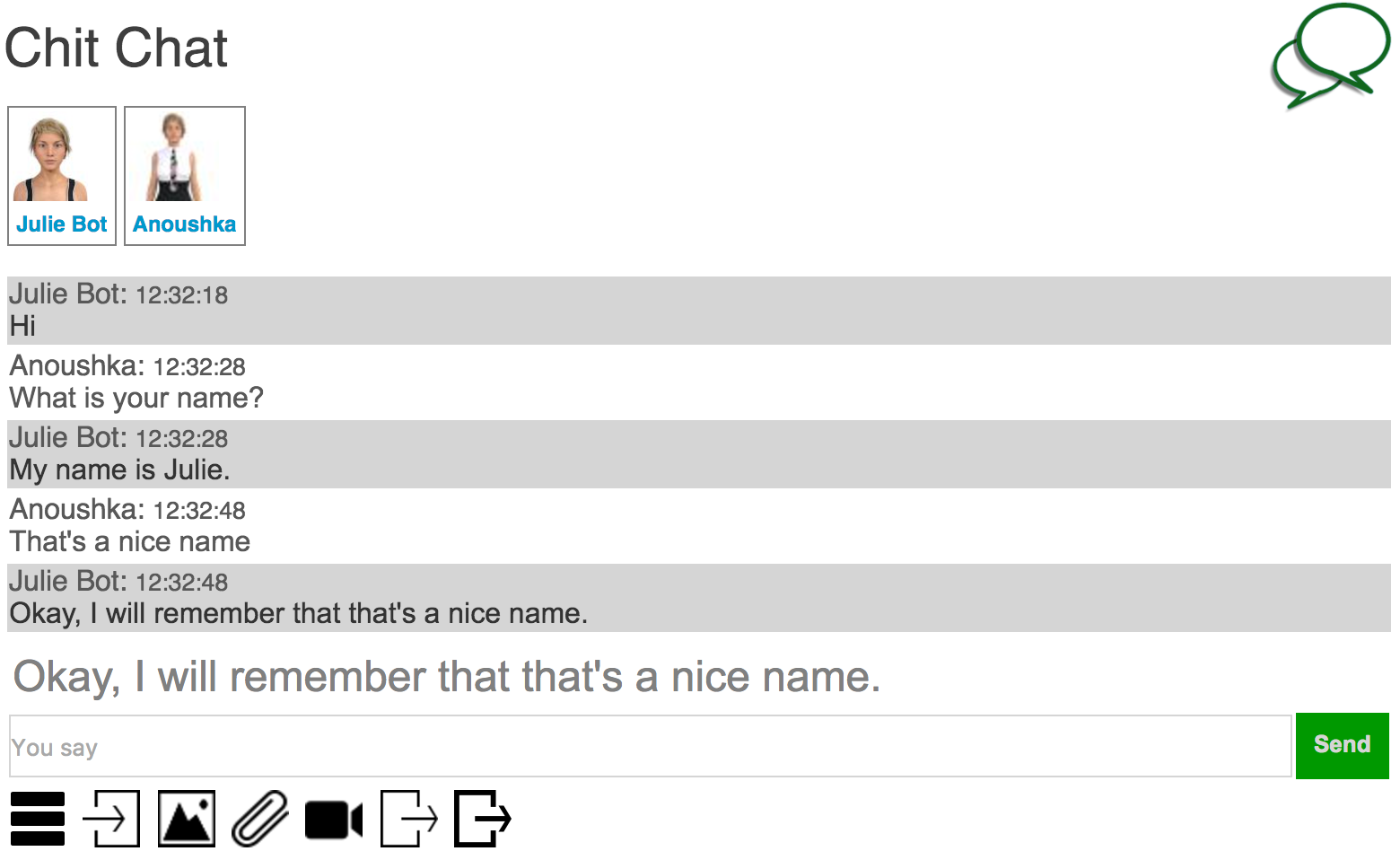
Chat Room is a channel where all users can see and chat with all other connected users. Users can also private other users to engage in a private one on one chat session. Administrators also have the option of booting users.

Chat Bots

Both type of channels can be configured with a chat bot. The bot will service the channel and chat with the users. For a One On One channel, the user is free to chat with the bot at anytime, such as when all operators are busy, or no operators are online. Adding a chat bot to your channel can help you reduce your call center staffing requirements, and improve your customer response time. Chat bots work 24x7, so you can still service your online call center when no operators are available.

For a Chat Room the chat bot will take part in the discussion. In Chat Room mode, the chat bots are configured to only answer questions that they know the answer to, or that are direct to them. Users can private the chat bot like any other user, and administrators can boot the bot if they choose.

The channel bot is configured from the Admin page. You can select any of the bots that you have created, or create a new bot. You can monitor and administer the bot the same as any of your bots. The bot can be configured in three modes.

  • Listen Only - The bot will only monitor the channel conversation, and will learn responses from the operators or users. This is a good way to train your bot.
  • Answer Only - The bot will monitor the channel and answer any questions it knows, or directed to it, but it will not monitor all conversations, and will not learn from operators, or other users.
  • Answer and Listen - The bot will both answer questions, and learn from operators and users.

Every Bot Libre bot has its own dedicated live chat, and chat room channel. From any bot's page you can click on the 'Live Chat', or 'Chat Room' button to access the bot's live chat channel. The first time the bot's channel is accessed, it will be automatically created to mirror the bot's info. The bot's administrators will be assigned to administrate the new channel.

You can access your live chat channels embedded link from the channel page. You can use this link to embed your channel on your own website, or blog. You are free to use all of Bot Libre's services for free, for personal, academic, or commercial purposes. Professional hosting is also offered for all of Bot Libre's services through Paphus Solutions Inc.

Monday, December 23, 2013

The BOT libre chat bot web API

In addition to being able to embed your chat bots on your own website, and access them from any Android device, you can also access your chat bots through the BOT libre web API. The web API gives you the advantage of having complete control of your bot's client interface.

You can use the web API to access your bot from your own website through JavaScript, PHP or any other language. You can also use the web API to create your own mobile application to access your bot, such as an Android or iOS application.

A web API, is a set of HTTP GET/POST URI's that allow sending and receiving of message data. When you browse a website, your browser makes a series of HTTP GET/POST requests to URIs that return HTML content. In a web service the URIs return XML or JSON data, instead of HTML content.

The BOT libre web API provides two REST APIs in one. The first is a set of HTTP GET URIs that take FORM data, and return XML data. The second set of API's take HTTP POST XML data, and return XML data. Most applications would use the XML POST API, but some application may choose to use the FORM GET API because of its simplicity. The APIs are identical other than their mechanism.

HTTP FORM GET API

  • http://www.botlibre.com/rest/botlibre/form-chat
  • http://www.botlibre.com/rest/botlibre/form-check-instance
  • http://www.botlibre.com/rest/botlibre/form-check-user
  • http://www.botlibre.com/rest/botlibre/form-get-all-instances

HTTP XML POST API

  • http://www.botlibre.com/rest/botlibre/post-chat
  • http://www.botlibre.com/rest/botlibre/check-instance
  • http://www.botlibre.com/rest/botlibre/check-user
  • http://www.botlibre.com/rest/botlibre/get-all-instances

form-chat

The form-chat API receives a chat message and returns the chat bot's reply as an XML document.

URI: http://www.botlibre.com/rest/botlibre/form-chat
Parameters: application, instance, user, password, token, conversation, message, emote, correction, offensive, disconnect, includeQuestion

Parameters

applicationOPTIONAL: The application ID. If not passed, the application will be anonymous.
instanceREQUIRED: The ID of the bot to chat with. The bot's name can also be used, but the ID is better as it is guaranteed to be unique.
userOPTIONAL: The ID of the user who is sending the message. The user must be registered with BOT libre. If not passed the user will be anonymous. The user is required if the bot is private. The user/password are only required on the first message.
passwordOPTIONAL: The password of the user who is sending the message. A token can also be used.
tokenOPTIONAL: The token of the user who is sending the message. A token can be obtained through check-user, and is valid until reset.
conversationOPTIONAL: The conversation ID for the current conversation. This must not be passed on the first message, but will be returned by the response, and should be used for all subsequent messages in the conversation.
messageOPTIONAL: The chat message to send to the bot. The message can be omitted if you wish the bot to start the conversation (if the bot has a greeting set). The message must be encoded in the URI.
emoteOPTIONAL: A emotion to tag the message with. This is one of LOVE, LIKE, DISLIKE, HATE, RAGE, ANGER, CALM, SERENE, ECSTATIC, HAPPY, SAD, CRYING, PANIC, AFRAID, CONFIDENT, COURAGEOUS, SURPRISE, BORED, LAUGHTER, SERIOUS.
correctionOPTIONAL: A boolean that defines the chat message is a correction to the bot's last answer.
offensiveOPTIONAL: A boolean that defines the bot's last answer as offensive. The message will be flagged for the bot's administrator to review.
disconnectOPTIONAL: A boolean that defines the end of the conversation.
includeQuestionOPTIONAL: A boolean that indicates the question should be included in the response.

FORM GET Example

XML POST Example

Example Result

form-check-instance

The form-check-instance API validates that a bot ID or name exists, and returns the bot's details.

URI: http://www.botlibre.com/rest/botlibre/form-check-instance
Parameters: application, instance, user, password, token

Parameters

applicationOPTIONAL: The application ID. If not passed, the application will be anonymous.
idREQUIRED: The ID of the bot to validate. The bot's name can also be used, but the ID is better as it is guaranteed to be unique.
nameREQUIRED: The nameof the bot to validate. The bot's ID can also be used.
userOPTIONAL: The ID of the user. The user must be registered with BOT libre. If not passed the user will be anonymous. The user is required if the bot is private.
passwordOPTIONAL: The password of the user. A token can also be used.
tokenOPTIONAL: The token of the user. A token can be obtained through check-user, and is valid until reset.

FORM GET Example

XML POST Example

Example Result

form-check-user

The form-check-user API validates user, and returns the user's details.

URI: http://www.botlibre.com/rest/botlibre/form-check-user
Parameters: application, user, password, token

Parameters

applicationOPTIONAL: The application ID. If not passed, the application will be anonymous.
userREQUIRED: The ID of the user. The user must be registered with BOT libre. If not passed the user will be anonymous. The user is required if the bot is private.
passwordREQUIRED: The password of the user. A token can also be used.
tokenREQUIRED: The token of the user. A token can be obtained through check-user, and is valid until reset.

FORM GET Example

XML POST Example

Example Result

form-get-all-instances

The form-get-all-instances API queries the details for all bot instances.

URI: http://www.botlibre.com/rest/botlibre/form-get-all-instances
Parameters: application, tag, sort, user, password, token, filterPrivate.

Parameters

applicationOPTIONAL: The application ID. If not passed, the application will be anonymous.
userOPTIONAL: The ID of the user. The user must be registered with BOT libre. If not passed the user will be anonymous. The user is required to query private bots.
passwordOPTIONAL: The password of the user. A token can also be used.
tokenOPTIONAL: The token of the user. A token can be obtained through check-user, and is valid until reset.
tagOPTIONAL: The tag to filter the bots by.
sortOPTIONAL: The sort option for the query. One of "name", "date", "dailyConnects", "weeklyConnects", "monthlyConnects".
filterPrivateOPTIONAL: Set if only the user's private bots should be returned.

FORM GET Example

XML POST Example

Example Result

So, that is the basic web API. You can now build your own interface for your bot. You can use the API on your own website, or in your own mobile application.

Monday, December 16, 2013

Embedding your bot on your own website or blog

You are free to embed the bots your create on your own website or blog. It is quite easy to embed a bot, and only takes a few lines of HTML code. You can embed a bot to provide help or service for your website, or as a stand-in for yourself on your blog.

The embedding HTML code can be copied from your bot's Embed page under Admin.

The simplest solution is to embed a bot inside your webpage using an iframe. Here is some simple code to embed Brain Bot in an iframe.

Code to embed a bot in a iframe

See the Talk with Brain Bot tab for an example.

Another option is to put a button or link on your website that open the chat bot in another window. This can be done using a little Java Script code.

Code to popup a bot in window

This code will produce the following:

Talk with Brain Bot

If you know a little HTML or Java Script, you can make how the bot is displayed more sophisticated. One option is to use an absolute position to make the bot popup inside a webpage. This will be demonstrated in the following code.

Code to popup a bot on a webpage

Code to embed a bot without the avatar

You can also choose to not display the bot's avatar and chat log. To do this pass the URL argument avatar=false in your link. You can also pass the welcome message using the message argument, i.e. message=Hello. The welcome message can also be configured from your bot's Training page under Admin.

This code will produce the following:

Talk with Brain Bot

So that's it, you should now be able to embed your bot on your website or blog.

Wednesday, December 4, 2013

Automate your Twitter presence with your own Twitterbot

Keeping up with social media and keeping your online community engaged can be a time consuming task. Through Bot Libre you can now automate your Twitter presence with your own Twitterbot. Any Bot Libre bot can be connected to a Twitter account. The bot will manage the Twitter account, checking status updates, managing followers, replying to mentions, retweeting important posts, tweeting your blog posts or RSS feed, and auto tweeting.

Bot Libre makes creating a twitterbot easy. Follow these 5 steps to create you own twitterbot, and start it tweeting for you today.

Step 1 - Create a bot

First you need to create your own bot, this only takes a few clicks, see How to create your own chat bot in 10 clicks for instructions on how to do this.

Note, in addition to Bot Libre's main server, Bot Libre also provides an separate dedicated Twitterbot server. You can create a Twitterbot on either server, but on botlibre.com free Basic accounts will only check their Twitter status once per day. You can upgrade your account to check every hour, or every 20 minutes, or use the dedicated Twitterbot server. On the Twitterbot server at, twitter.botlibre.com even free Basic accounts will check their status once every couple of hours, and you can upgrade your account to check your status about every 10 minutes.

Now you are ready to connect your bot to Twitter.

Step 2 - Create a Twitter account

You need to create a Twitter account for your bot. If you are automating your own account, then you can use your existing account. You can create your own Twitter account from the Twitter website here.

Step 3 - Authorize your Twitter account

From the Bot Libre website browse to your bot and click the Admin Console button. This will take you to the Admin section that provides several tabs of administrative functions. Click on the Twitter tab. From the Twitter tab click the Authorize button.

This will give you a link to Twitter. Click on the link, this will bring you to Twitter where you must accept the application authorization request, you will need to login to Twitter if you are not already logged in. Twitter will give you a code, you must go back to the Bot Libre page and enter the code, and click Done. This will return you to the Twitter properties page, next click on the Connect button.

Step 4 - Configure your Twitterbot

You can configure your bot's Twitter usage in several ways. Use caution when configuring your Twitter bot, do not use your bot for spam, or to violate the Twitter terms of service.

Tweet when someone chats with the bot

This property configures if the bot should tweet when someone chats with it on Bot Libre. It will tweet some like "Talking with anonymous on #botlibre".

Reply to mentions

A mention is when another Twitter user tweets to you, or about you using your Twitter ID, i.e. @brainchatbot. This configures your bot to reply to all tweets that mention it. The bot will reply the same way it replies to chat messages.

Reply to direct messages

A direct message is private message from another Twitter user. This configures your bot to reply to all direct messages. The bot will reply the same way it replies to chat messages.

Read friends status updates

Configures if your bot will process its friends tweets. The bot will only process its friend's tweets that include one of its 'Reply Keywords' sets. If the tweet does not include any of the keywords, it will be ignored. The bot will process the tweet like a chatroom message, it will only respond to the status update if it knows a good response, (requires a 90% match to respond). Scripted responses will also be used for tweets that are questions. The 'Read-only' option can be used to have the bot read all of its friends tweets, but not reply.

Max Status Updates

Configures the maximum number of friend tweets to process in one cycle.

Reply Keywords/Hashtags

The bot will only process its friend's tweets that include one of its 'Reply Keywords' sets. If left blank, the bot will not process any of its friend's tweets, unless the 'Read-only' option is used.

Tweet Search

Configures if the bot should search and process tweets that match a certain criteria. The bot will process, and possibly reply to the tweet, or retweet the tweet. Use this feature with extreme caution, and do not spam. Tweet search uses Twitter's search API which can include a list of keywords, and some other advanced syntax.

Retweet Keywords/Hashtags

Configures if the bot should retweet certain tweets from its friends, or its tweet search results. If the tweet contains any of the keyword sets, the bot will retweet it. Note, this use only keyword set, not Twitter's search syntax. Since the retweet keywords are apply on top of the search results, you only need to include the keywords, as the results have already been filtered.

Auto Follow

Auto follow means that if someone follows your bot, it will follow them back. The purpose of this is to allow the bot to read the friends status updates, to provide some service. Be careful in enabling this, it should not be used to allow Twitter users to increase their follow counts. The bot will only auto follow at most 100 users.

Follow Messages

Follow Messages configures if your bot will listen to 'follow me', or 'unfollow me' requests. If the bot gets a direct message, or tweet mention that request a follow, or unfollow it will perform the request. The purpose of this is to allow the bot to provide some service to users that subscribe with it. Be careful in enabling this, it should not be used to allow Twitter users to increase their follow counts. The bot will only follow at most 100 users.

Welcome Message

You can set a welcome message to be sent as a direct message to anyone who follows your bot.

Max Friends

You can configure the maximum number of friends your bot will follow on its own. The maximum is 100 friends. You can still add more friends manually if you wish.

Auto Follow Keywords

This configures the bot to only follow users who's name or description contains the keywords.

RSS Feed

Configures the bot to process an RSS feed, and post each new feed item to Twitter. An RSS feed is a standard XML format for news and posts. You can get an RSS feed link from your blog, or from many news and forum services. Make sure you give the full HTTP link to your RSS feed, this should be an XML file, not a webpage or HTML file.

RSS Keywords

You can filter the RSS feed results using keywords. To post the entire RSS feed, leave this blank.

Auto Tweet

You can configure your bot to tweet every set number of hours. The bot will tweet a random tweet from its 'Auto Tweets' list.

Auto Tweet Hours

The number of hours to wait between auto tweets. Note, if you bot only checks it status once per day, it will only auto tweet once per day, even if you put 1 hour here. To force your bot to auto tweet every time its checks its status, you can put -1 here.

Auto Tweets

You can enter a list of tweets here. Each tweet is separated by a new line. You can use formulas and AIML template to construct dynamic tweets.

Step 5 - Train your bot

You can train your bot how to answer tweets, mentions, and direct messages through several mechanisms.

  • You can chat with your bot, and correct any incorrect responses it gives.
  • You can add question answer pairs, or default responses from the Training & Chat Logs page in your bot's Admin Console.
  • You can review your bot's chat logs, or upload or import chat logs, response list, or AIML.
  • If you are a programmer, you can script your bot's responses in Self, or AIML from your bot's Scripts page.

That's it, now your bot is ready to start tweeting.

There are already many Bot Libre bots on Twitter.
You can test things out by tweeting to, @brainchatbot, or @TheSantaBot