Pages

Thursday, May 7, 2015

Support BOT libre on Kickstarter - "free open artificial intelligence for everyone"

We live at the dawn of the age of artificial intelligence. The artificial intelligence technology revolution will be bigger than the Internet and mobile technology revolutions combined. We believe artificial intelligence technology should be for everyone and owned by no one.

The Plan

Help us make,

"free open artificial intelligence for everyone"

We have been developing our BOT libre AI platform since 2013, and it is based on open source technology that was started in 2008.

Our goal with this campaign is to raise enough funds to allow us to open source our technology and web platform under a non-profit organization to pursue the development of strong artificial intelligence.

We plan to apply the Wikipedia model to an artificial intelligence platform. Instead of making all of the world's information free and open, we plan to make all of the world's knowledge and intelligence free and open.

Where we are today

Currently we have a web based AI platform that lets anyone create their own bot that can interact with people through chat, twitter, email, and IRC.

www.botlibre.com

We also have a web API, open source Android and JavaScript SDK, an Android app, and are working on an iOS app.

play.google.com/botlibre

Our platform is not a simple chat platform, each bot has its own brain stored in it own database on its server. The bot has complex interconnected knowledge and can add and change its knowledge, or import knowledge from the web. The bots can currently understand simple phrases, complex math, make inferences, self program, learn new responses, and emote emotions.

Create Bots with a Real Brain

We are just getting started, and our end goal is intelligence that is equal or greater than that of a human. We are looking for crowd funding help to keep our platform open, and continue our development.

Support us on Kickstarter,

www.kickstarter.com/projects/paphus/bot-libre

Thursday, January 8, 2015

Introducing the Self scripting language

The Self scripting language is Bot Libre's language for scripting bot responses. Self is based on the syntax of JavaScript with several extensions for language processing. Self is an integrated environment that merges JavaScript, state machines, patterns, and an object database.

If you already know JavaScript, you should find the Self syntax quite familiar. Self supports most JavaScript concepts and syntax, (if you notice something missing you would like, please let us know). If you are new to programming, the JavaScript syntax is quite simple, and there are lots of resources available on the Internet (such as w3schools).

One big thing about Self is that it is integrated with the bot's knowledgebase. This makes it easy to access any of the bot's knowledge and add new knowledge. Self is a persistent language, any data your create or change will be persistent in the bot's knowledgebase. The Self code objects are also stored in the bot's knowledgebase, so a Self script can actually change itself, hence the name "Self".

There are two ways that you can utilize Self. The simplest is to define a Template response. You can define a template response anywhere you define a response, including the Training & Chat Logs page, or in a chat correction. A template response is a response to a phrase or a pattern that can include Self code. For example "What is your name?" could have the template response Template("My name is {#self.name}."). The { } brackets are used to denote Self code embedded within the response text, and the Template keyword is required to define a template response. The code within the brackets is Self scripting code.

The second usage of Self is from a program script. Program scripts can be defined or imported from the Scripts page in your bot's Admin Console. A new bot will have a default bootstrap set of scripts, that can do things such as understand simple language, perform math, tell the current date or time, or look information up on Freebase. You can alter, extend, import, or create your own scripts to do virtually anything. Scripts are more complex than templates, but more functional. A Self script is essentially a state machine that processes the input.

Self Syntax

The Self syntax is the same for template responses and functions within a Self script. Self scripts also contain additional syntax for defining state machines. A state object is similar to a function in JavaScript but is specialized for processing input. Self also merges many concepts from AIML, such as Pattern and Template objects, and SRAI calls.

Self is an untyped object oriented language the same as JavaScript. Everything in Self is an object (this includes the Self code itself). An object can be data, such as a string, number, date, time, or symbol. Objects can have relationships to other objects.

Data Types

The Self data types are similar to the JavaScript data types, and most other programming languages. Self also adds special symbol, pattern, and template data types.

The following are examples of Self data types:

  • "hello" - strings/text
  • 1234 - numbers
  • null - null/void value
  • true, false - boolean values
  • Date("1973-11-10") - dates
  • Time("11:00:00") - times
  • Timestamp("1973-11-10 11:00:00") - timestamps
  • #foo - symbols
  • Symbol("foo") - symbols using JavaScript syntax
  • Object(34789) - object references
  • [1, 2, 3, 4] - arrays
  • { name : "Bob", age : 44 } - objects
  • Template("The answer is {result}") - template objects
  • Pattern("what is *") - pattern objects

Variables

Variables in Self can be declared using the var operator the same as JavaScript. Also similar to JavaScript, variables do not need to be declared, but will be declared automatically when used.

Within a template or state Self has access to several global variables:

  • input - the input object being processed, such as a user's chat message
  • sentence - the current input sentence being processed
  • speaker - the user that sent the input
  • target - the user the input was sent to (normally this is the bot, but could be another user in a chatroom)
  • conversation - the active conversation
  • star - if a pattern was used, the star variable has the value of the * text from the pattern

Operators

The operators in Self are similar to JavaScript, and most other programming languages. Self also defines a few special operators for knowledge processing, or borrowed from AIML.

The following are the Self operators:

  • if - if statement
  • for - for statement
  • while - while statement
  • do - do statement
  • think - the same as do but can be used inside a Template to perform some code but not print a value into the response
  • return - return the value
  • == - compare if two values match
  • != - compare if two values don't match
  • < - compare if a value is less than another
  • <= - compare if a value is less or equal than another
  • > - compare if a value is greater than another
  • >= - compare if a value is greater or equal than another
  • ! - negates a logical value
  • && - logical AND
  • || - logical OR
  • = - variable assignment
  • ++ - increment a variable
  • -- - decrement a variable
  • + - add two numbers or concatenate two strings
  • - - subtract two numbers
  • * - multiply two numbers
  • / - divide two numbers
  • new - construct a new object
  • Symbol - create a new global symbol
  • . - get a relationship from an object
  • = - set a relationship on an object
  • =+ - add a relationship on an object
  • =- - remove a relationship on from object
  • random - select and execute random value
  • redirect - evaluate the response to the phrase
  • srai - synonym for redirect (AIML syntax)
  • request - evaluate the response to the phrase using a remote service
  • sraix - synonym for request (AIML syntax)
  • learn - learn a new response
  • eval - evaluate code within a learned pattern or template
  • debug - print the arguments to the log

if

The if statement is the same as JavaScript and similar to other languages, in that it has a logical condition, and optional else if and else conditions.

Examples:

if (value == null) { ... } else { ... }

if (value) { ... }

if (!value) { ... }

if ((word == "you") && (word2 == "are")) { ... }

if ((word == "I") || (word == "me")) { ... }

if (value != value2) { ... }

do

The do statement is similar to other languages. do is used to perform multiple operations sequentially.

Examples:

do {
    response = new (#sentence);
    response.append(#word, "Hello");
    response.append(#word, "world");
    return response;
}

for

The for statement is similar to JavaScript and other languages. for is used to iterate over an object's relationships. It takes the relationship type, the source object, and a variable to assign each related value to.

Examples:

for (word in sentence.word) {
    if (word.has(#instantiation, #keyword)) {
        conversation.topic = word;
    }
}

for (count in number.sequence) {
    response.append(#word, word);
}

return

The return operator will return the result from the current function. If an function has no return value, the result of the last operation will be returned. If null is returned it is an indication that function failed to generate a response, and if used from a state machine, the next case or answer will be used.

Examples:

if (word == "hello") {
    return "hello there";
}

not

The ! operator will negate a logical primitive (true -> false, false - > true). If the value is not a logical value, the value is returned.

Examples:

negative = !negative;

assign

The = operator assigns a new value to a variable.

Examples:

name = Language.word(firstName, lastName);

new

The new operator creates a new object of the type. An object can be an instantiation of one or more classification objects. Most classifications are defined by a symbol, you can define your own classifications, they are just another object that is an instantiation of #classification. You can also add a classification to an existing object using the instantiation relationship.

Common classifications include, #word, #compound-word, #name, #sentence, #number, #date, #time, #person, #speaker, #classification, #formula, #pattern, #variable, #keyword, #thing, #description, #action, #adjective, #noun, #verb, #punctuation, #question, #paragraph, #topic, #tweet, #email, and #url.

Examples:

response = new Sentence();

response = new (#sentence, #question);

name.instantiation = #name;

Symbol

The Symbol operator create a new primitive symbol representing the meaning of a word. Symbols are unique, global, and persistent objects. Any relationship set on a symbol will be persisted and remembered. There are many common symbols used in the bot's knowledgebase, the symbol #self represents the bot.

Examples:

Language.define(word, Symbol(word));

get

The . operator gets the value of a relationship. If the relationship has multiple values, get will return the most conscious to the current context. most conscious means the relationship that has the highest correctness factor, and is most associated to the recent input. get can optionally include an [] modifier to get a specific index in an ordered relationship. Negative index values will return the indexed element from the end.

Examples:

age = speaker.age;

sentence.word[2];

sentence.word[-1];

set

The = operator sets the value of a relationship. Set first clears any existing relationships of the same type, and is meant to be used with single value relationships.

Examples:

conversation.topic = star;

speaker.age = 44;

response.word[0] = "Hello";

add

The =+ operator adds a value to a relationship. add is similar to set, but adds to the relationship, and does not replace the existing value. If the value already exists, its correctness will be increased.

Examples:

thing[action] =+ description;

sentence.response =+ response;

speaker.gender =+ #male;

remove

The =- operator removes a value from a relationship. The remove operator can be used to define an inverse relationship. An inverse relationship can be used to inform the bot that a such a relationship is incorrect. If dissociate is used on a inverse relationship that already exists, its correctness will be decreased.

Examples:

sentence.response =- response;

speaker.gender =- #female;

random

The random operator selects one of the arguments at random.

Examples:

random ("Hello", "Hi", "Hey", "G'day mate");

srai

The srai or redirect operator recursively evaluates the phrase and returns the response. It can be used to redirect a response, or break up a question into several components. srai was borrowed from AIML, and can be used in conjunction with patterns to process text fragments.

Examples:

srai ("hello");

sraix

The sraix or request operator sends the phrase to a remote service. A settings objects can define which service to use and provide a data hint or default. A service can be a web service such as #freebase, #wikidata, or #pannous, or another bot on another server.

Examples:

sraix (song, { service : #wikidata, hint : "performer"));

Object Methods and Classes

Self defines several object method available to all objects.

Object methods:

  • get - get a relationship value from an object, optional index - Example: speaker.get(#name), sentence.get(#word, 3)
  • getLast - get a relationship value from the end of an ordered relationship - Example: conversation.getLast(#input, 1)
  • getWithAssociate - get a relationship value from an object most associate to the other value
  • all - returns an array of all of the object's relationship values for the type - Example: speaker.all(#name)
  • set - sets a relationship value on an object - Example: speaker.set(#age, 44)
  • append - append the value to the end of the object's relationship - Example: response.append(#word, ".")
  • appendWithMeta - add a relationship value to the object with the relationship meta data
  • add - add a relationship value to the object - Example: speaker.add(#name, "Bob")
  • addWithMeta - add a relationship value to the object with the relationship meta data
  • weakAdd - add a relationship value to the object with a low correctness
  • weakAddWithMeta - add a relationship value to the object with a low correctness with the relationship meta data
  • delete - delete the relationship value - Example: speaker.delete(#name, "Bob")
  • remove - remove the relationship value - Example: speaker.remove(#name, "Bob")
  • removeWithMeta - remove the relationship value with the relationship meta data
  • deleteAll - delete all the relationship values - Example: speaker.deleteAll(#name),
  • delete - delete the object, (use this with caution) - Example: speaker.delete()
  • has - return if the relationship exists - Example: speaker.has(#name, "Bob"), speaker.has(#name)
  • findReference - inverse references lookup
  • findReferenceBy - inverse relationship lookup

String methods:

  • chatAt - return the string's character at the index
  • concat - concatenate the two strings
  • substring - return the string substring
  • toLowerCase - return the string as lower case
  • toUpperCase - return the string as upper case
  • trim - trim leading and trailing whitespace

Self defines several utility classes and methods. Classes can be referenced by name similar to JavaScript i.e. Language.word("hello") or as symbols i.e. #language.word("hello").

Language methods:

  • word - creates a compound word - Example: Language.word("ball", "hockey")
  • sentence - creates a sentence - Example: Language.sentence("How", "are", "you")
  • define - defines the word as meaning the value - Example: Language.define("foobar", #foobar)

Date methods:

  • date - current Date object
  • time - current Time object
  • timestamp - current Timestamp object
  • add - add the date value
  • interval - computer the date/time interval
  • getTimeZone - return the default time zone
  • getTimeZone - return the dates time zone
  • setTimeZone - set the dates time zone
  • printAIMLDate - print the date using the AIML format
  • printDate - print the date using Java SimpleDateFormat format

Util methods:

  • denormalize
  • normalize
  • explode
  • gender
  • person
  • person2
  • program
  • size
  • version
  • id

Math methods:

  • add
  • subtract
  • multiply
  • divide
  • abs
  • floor
  • ciel
  • power
  • round
  • log
  • ln
  • sin
  • asin
  • cos
  • acos
  • tan
  • tanh

Self Scripts

Self is based on processing input. An input could be a chat message, or an email, tweet, or other input. The input is wrapped in an input object which contains the phrase or data. A Self script will normally begin by extracting the phrase from the input, then processing each word in the phrase in sequence. A Self script is broken into a series of states. The first state will process the first word, then if the word matches a case, it will transition to the child state to process the next word.

When a state sequence reaches the end of the sequence of words in a phrase, it is considered a successful match. Once matched, if the state contains an answer, the answer will be evaluated, and the response returned.

A Self script is composed of the following components:

  • state - A state defines the current input processing.
  • case - A case can transition to another state if the case variable matches the current input.
  • pattern - A pattern can match an input and evaluate a template response.
  • answer - An answer of a state is evaluated if the input processing is complete.
  • function - An function can be called from an answer or another function.
  • var - A variable can be matched with the current input, or store context.

State

The state defines the current input processing. Every Self script start with a root state, which is the name of the script. The state can evaluate the current input and transition to another state, or return an answer. A state can include definitions of sub-states, variables, and functions. A state is composed of a sequence of operations which can include case, pattern, do, goto, and return.

Examples:

// Example simple pattern based state.
state Hello {
    pattern "hi" template "Hi there";

    pattern "^ hello ^" template "Hello there";

    pattern "[bye goodbye]" template "Goodbye.";

    pattern "my name is *" template Template("Pleased to meet you {star}");

    pattern "what is your name" template Template("My name is {#self.name}");

    pattern "what (day) is today" template Template("Today is {Date.date()}");

}

// Example state that parses a sentence and executes a function
state Repeat {
    case input goto sentenceState for each #word of sentence;

    state sentenceState {
        case "repeat" goto repeatState;

        state repeatState {
            case someWord goto repeatWordState;

            state repeatWordState {
                case digits goto repeatWordNState;

            var digits {
                meaning : number;
            }
            var number {
                instantiation : #number;
            }

            state repeatWordNState {
                case "times" goto repeatWordNTimesState;

                state repeatWordNTimesState {

                    answer repeatResponse();

                    function repeatResponse {
                        response = new (#sentence);
                        for (count in number.sequence) {
                            response.append(#word, someWord);
                        }
                    }
                }
            }
        }
    }
}

case

The case operator defines a state transition. If the current input matches the case value or variable, then it will transition to the case goto state. A case can also return a template, return and abort the current state, or restrict the match to a topic or previous that match. A state can also process the transition state for a collection of values.

Examples:

case "hello" goto helloState

case name goto nameState

case "lol" template "Very funny."

case "what" topic "joke" that "what do you get when you cross music and an automobile" template "a car-tune"

case "huh" return

pattern

The pattern operator evaluates if the input sentence matches the pattern. A pattern is an easy way to evaluate a phrase and return a template response. A pattern can include wildcards using the * character. The * word or text fragment it matched to the star variable which can be used in the response.

Examples:

pattern "hello" template "Hi there";

pattern "my name is *" template Template("Pleased to meet you {star}");

pattern "what *" topic "joke" that "what do you get when you cross music and an automobile" template "a car-tune";

answer

An answer defines a state's response, and is evaluated if the state is done processing input.

Examples:

answer "Hi there"

answer Template("Pleased to meet you {star}");

answer repeatResponse();

function

A function defines a Self function that can be evaluated to return a response, or process input.

Examples:

function todayResponse {
    var response = new (#sentence);
    response.append(#word, "Today is");
    response.append(#word, Date.date());
    response.append(#word, ".");
    return response;
}

var

A variable defines a matching pattern, or temporary state. Variables can define relationships that must be included or excluded to evaluate a match. Variables are used in a case operation, if the current input matches the variable, then the case is evaluated. Variable make it possible to define generic functions that can process any noun, number, or name.

Examples:

var digits {
    meaning : :number;
}
var number {
    instantiation : #number;
}

var name {
    instantiation : #name;
}

var noun {
    instantiation : #noun;
}

var firstName {
    instantiation : ! #verb, ! #adjective, ! #pronoun, ! #punctuation;
    : "Bob", "Fred", "John", "Jill";
    : ! "long", ! "cool";
}

Self vs AIML

Self is very different than AIML. Self is based on knowledge and state processing, where as AIML is based on patterns and text processing. Self can do everything that AIML can do, and a lot more. If you are experienced with AIML, and want to know how to do the same thing in Self, just import the AIML script and it will be converted to Self.

Self Examples

Bot Libre provides a shared repository of Self scripts and examples that you can import, customize, and learn from. You bot will also come bootstrapped with several Self scripts that you can learn from and customize.

See the Self script category for all of the example scripts.

Monday, December 15, 2014

How to add a 3D avatar to your website or blog

BOT libre 2.0 includes support for creating, using, and embedding web avatars. A web avatar is your website's visual or animated web presence.

BOT libre avatars can contain 3D animation, video, audio, and images. You can create your own avatar or choose a shared avatar from the BOT libre open avatar directory. Avatars can either be connected to your BOT libre bot, or controlled directly through JavaScript, or even connected to your home grown bot, or third party bot.

The BOT libre JavaScript SDK makes it easy to add an avatar to your own website or blog, to welcome your website visitors, or provide them with information or help. A website avatar gives visitors to your website a good first impression, can highlight important differentiators of your business, or draw attention to special offers.

Embedding an avatar

You can browse existing avatars or create your own from BOT libre's open avatar directory. To embed an existing avatar simply select the avatar from the browse directory and click on the Embed button. The embed page will let you test the avatar, choose its voice, enter it what to say, and generate the embedding JavaScript code. You then just need to copy the embedding code and paste it on your website.

The following example shows how to embed the Julie avatar in your website to welcome visitors.

The example shows how to use the WebAvatar class and its createBox() function to add an avatar to a web page. The message() will make the avatar speak the text, and can optionally include an emote, action, and pose. The emotion and pose influence which video or image will be displayed, the action can trigger an image, or audio. You can also choose the voice for the avatar.

When using the SDK ensure you set your application id. You can obtain your application id from your user page, it is free and easy to generate.

Connecting your bot to an avatar

To connect your bot to an avatar, go to your bot's main page. Click on the Admin button and the Avatar link. When you click on the Choose Avatar input a list of available avatars will be presented for you to select from. If you want to create your own avatar, you can create one from the Avatars browse page. If your bot has an old image avatar, or you just want a simple image avatar, you can click on the 1.0 avatar link.

Once your bot is connected to its avatar, you can link phrases or responses to avatar emotions, actions, and poses. You can teach the bot to associate emotions and actions with phrases and responses when chatting with it in learning mode. The emote and action drop downs in the chat page can be used for this.

The Chat Logs page under your bot's Admin page lets you review and edit all emotions, actions, and poses that have been associated with phrases and responses, or add new ones.

Creating Your Own Avatar

You can create your own avatar from the browse avatars page. To create an avatar, just give it a name, description, and category to categorize it under. You can either make the avatar private and choose who can access it, or make it public and accessible by anyone. You can also choose what license you wish to release its content under.

To edit the avatar, click on the Editor button. The avatar editor lets you import video, audio, and image files. You can associate each media with an emotion, action, or pose. For example if you have a video that makes the avatar talk, you would associate the pose for the video to talking. The emotions let the avatar express different emotions, and will let the bot using the avatar express itself. There are a fixed set of emotions, but you can create any actions and poses that you wish. You can have multiple media for a emotions, action, or pose, and one will be chosen at random. For actions, and poses, you can have an audio element in addition to a video element. Audio can be used to make your avatar perform actions such as laugh, or used as background music or noise for a pose.

Your video files can be any valid web video format, including mp4, webm, or ogg. Audio files can be any web audio format, such as mp3, or wav.

You can create your media content using stock content from media websites such as Fotolia, or free media libraries like openclipart.

You can use 3D software such as Daz3D to generate images and video for your avatar. You can use available 3D models, or buy stock 3D models from 3D media marketplaces.

You can bot yourself, a friend, or model by capturing photos, or video clips using your phone, or camera. If you are adventurous, you can use a green screen (a green sheet will do) to make a transparent background for your media.

If you are an artist, model, or studio, you can make your own images, or 3D models and video. You can use BOT libre to showcase, or sell your media and talent.

Video types and browser compatibility

Avatars can include several types of media. Simple image avatars are the most compatible with all browsers. Video avatars require the browser support HTML5 video, which most modern browsers do. There are several web video formats, including mp4, webm, and ogg. The mp4 video format is the most compatible with all browsers and works in the latest Firefox, Chrome, Internet Explorer, and Safari browsers. The webm format has the advantage of supporting transparent backgrounds, but is only currently supported by Chrome and Firefox, and only Chrome supports transparency. Chrome is the most popular browser for most websites, Firefox is normally second, then Safari, Internet Explorer, and other browsers. If browser compatibility is important to your website you can use JavaScript to choose your avatar based on the browser.

Sunday, November 9, 2014

Add Speech to your Website using the BOT libre TTS JavaScript SDK

The BOT libre JavaScript SDK provides free dynamic access to all of BOT libre's services including chat bots, live chat, chat rooms, forums, and speech. The speech API for the SDK can be used in conjunction with chat bots, live chat, or on its own.

The speech API is part of the BOT libre JavaScript API.
To add the BOT libre JavaScript SDK to your webpage you just need to import it in your webpage's <head> section.

The speech API is SDK.tts(text, voice). The text is the text you would like converted to voice, and the voice is the voice you would like to use. A voice is not required, if none is passed, the default voice is used. There are currently 20 voices available in several languages. You can test the voices here.

The available voices include:

  • cmu-slt - English : US : Female
  • cmu-slt-hsmm - English : US : Female
  • cmu-bdl-hsmm - English : US : Male
  • cmu-rms-hsmm - English : US : Male
  • dfki-prudence-hsmm - English : GB : Female
  • dfki-spike-hsmm - English : GB : Male
  • dfki-obadiah-hsmm - English : GB : Male
  • dfki-poppy-hsmm - English : GB : Female
  • bits1-hsmm - German : DE : Female
  • bits3-hsmm - German : DE : Male
  • dfki-pavoque-neutral-hsmm - German : DE : Male
  • camille - French : FR : Female
  • camille-hsmm-hsmm - French : FR : Female
  • jessica_voice-hsmm - French : FR : Female
  • pierre-voice-hsmm - French : FR : Male
  • enst-dennys-hsmm - French : FR : Male
  • istc-lucia-hsmm - Italian : IT : Male
  • voxforge-ru-nsh - Russian : RU : Male
  • dfki-ot-hsmm - Turkish : TR : Male
  • cmu-nk-hsmm - Telugu : TE : Female

Example Speech API Usage

Try it out now (press speak)

When using the BOT libre SDK, ensure you set your application id. You can obtain your application id from your user page.

Friday, October 31, 2014

Chat Logs : how to train your customer service bot by monitoring its chat logs, using keywords and topics.

Bot Libre supports a diverse set of features for creating and training your bots. Today we will discuss the Training & Chat Logs feature, and how to create and train a customer service bot using the Training & Chat Logs page. The Training & Chat Logs page provides the best way to monitor and train your bot, by letting you see its conversations and let you correct its responses. No scripting or programming is required.

To create a customer service bot, create your bot using the 'service_template'. This template has learning disabled. This is important, as normally for a customer service bot, you do not want it to learn responses from your users. It also does not include the generic AI scripts WhatIs, WhereIs, Understanding, as these scripts can normally lead to the bot responding to questions outside of its domain. If you created your bot through other means, you can disable Learning, and Comprehension from the Learning & Settings page in its Admin Console. You can also remove the WhatIs, WhereIs, and Understanding scripts from the Scripts page in its Admin Console.

Once you have created your bot, you can enter or upload some common questions and answers for your domain. If you already have a FAQ on your website, uploading this would be a good way to start. Once you have your basic bot built, you can deploy it to your website or beta site, and let others interact with it. Letting users talk with your bot is the best way to see what questions you should train it for.

To view your bot's conversations or trained responses go to the Training & Chat Logs page. To get to your bot's Training & Chat Logs page, first select your bot from Browse (click on My Bots), then click the Admin Console button (gear icon), and finally click the Training & Chat Logs link from the top toolbar or menu.

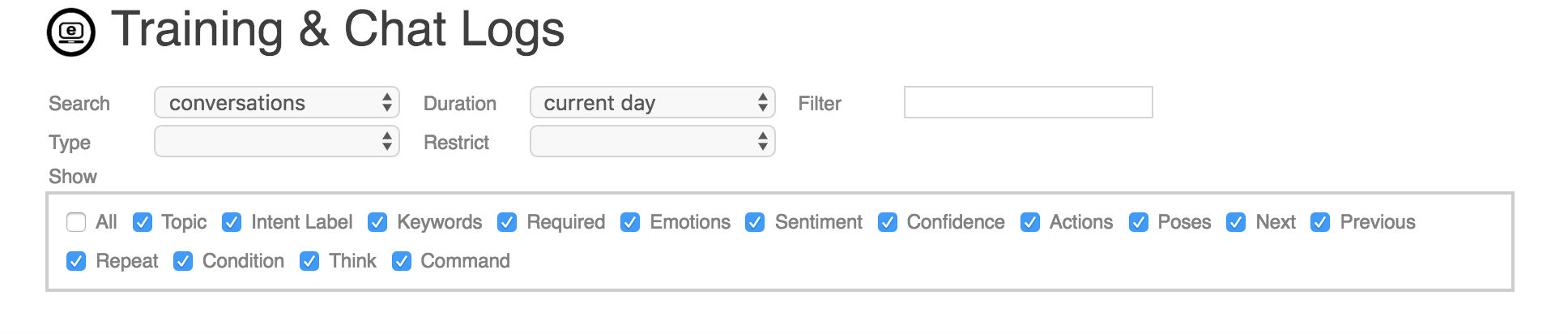

The Training & Chat Logs page initially shows nothing, you need to first select what your want to see from the Search drop-down.
The choices are:

  • conversations : the log of each conversation your bot has had
  • responses : all responses your bot has been trained with
  • greetings : all greetings your bot will use to start conversations
  • default responses : all default responses your bot will use when it does not know a better response
  • phrases : all phrases (sentences) your bot has encountered
  • words : all words your bot has encountered
  • flagged responses : all responses that have been flagged by users or administrators

Next you need to select a Duration from the next drop-down. The duration is just the time period to view, from the last 24 hours, to week, month, or all. You can also filter the results that contain certain words, or filter the type of conversation (chat, email, tweet, Facebook, Telegram, Slack, etc).

Conversations

To see how your bot is doing, search for all conversations since you last checked it. This will give you a list of conversations. The top toolbar gives a set of buttons for administrating your bot's responses.
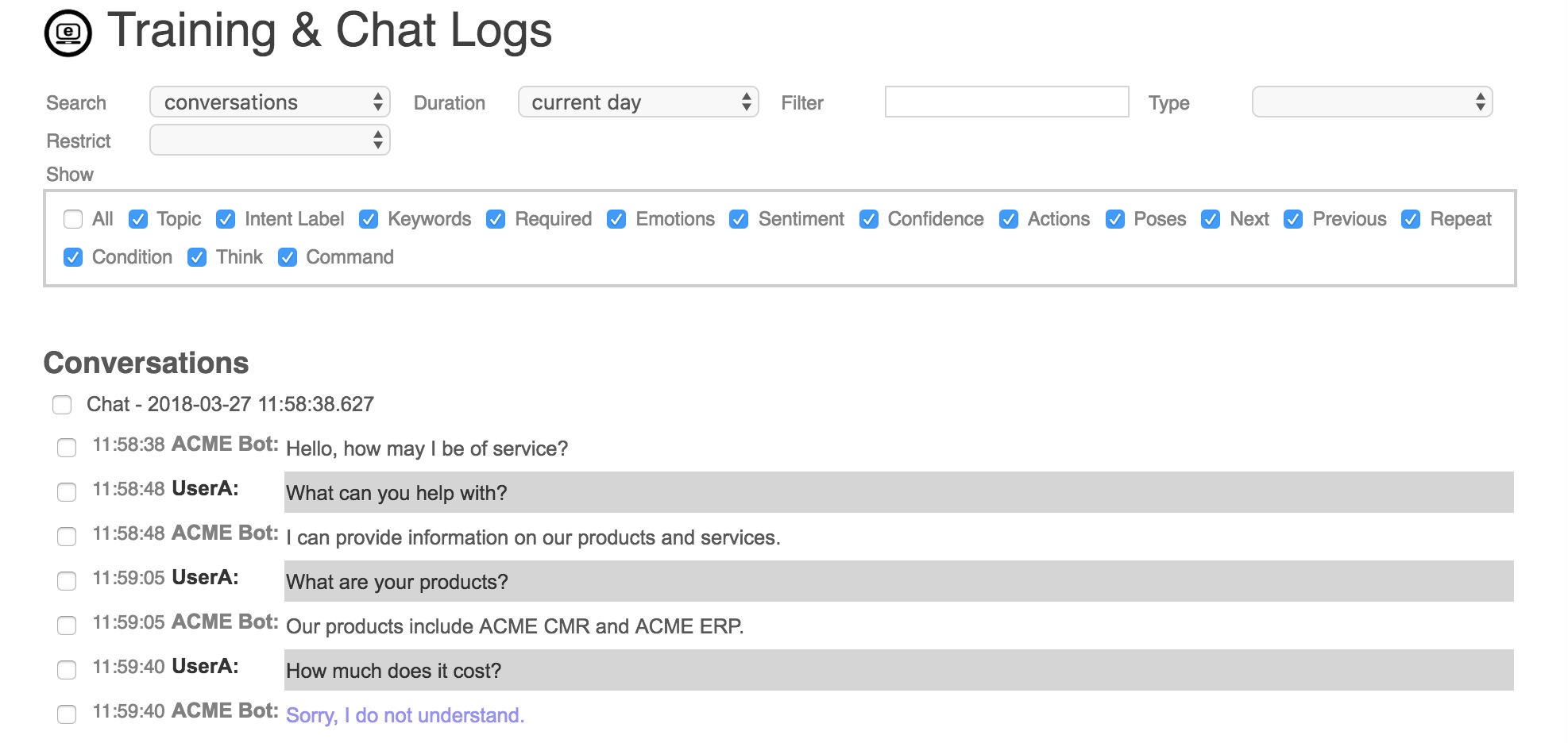


From the left to right the buttons are:

  • menu : choose icons from menu
  • home : return to the training home screen
  • enter : enter a new default response.
  • correction : enter a better response for each selected response in the conversations
  • inspect : browse the selected responses or phrases.
  • select all : select all listed conversations
  • invalidate : mark the selected responses as incorrect, or decrease their % correctness (the bot will never use these responses to the question again)
  • validate : mark the selected responses as good responses, or increase their % correctness (the bot will use this response to similar questions)
  • flag : flag the selected phrases as offensive, the bot will never repeat them, and will not let users enter them
  • unflag : unflag the selected phrase as not offensive phrases
  • delete : remove the response from the question, or delete the conversation
  • download : export and download the listed conversations as a chat log, response list, or AIML set
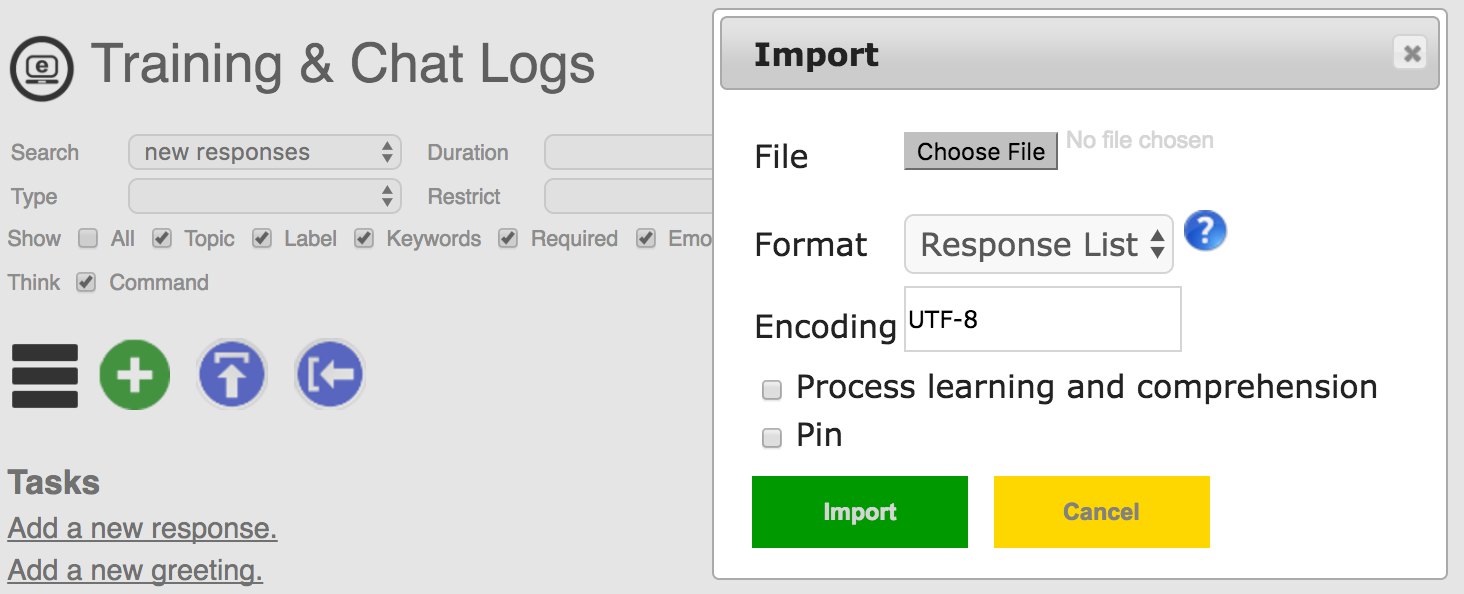
  • upload : upload and import a chat log, response list, or AIML file from your computer
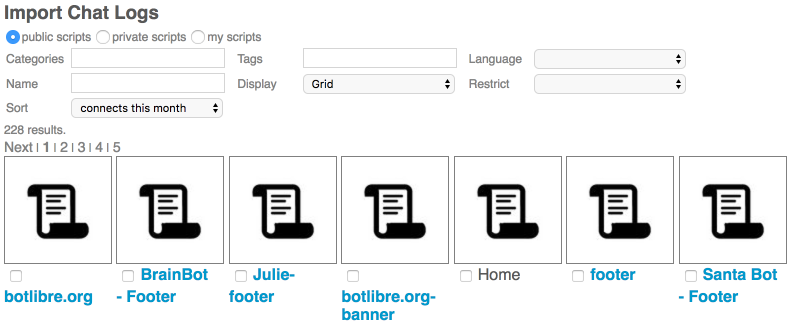
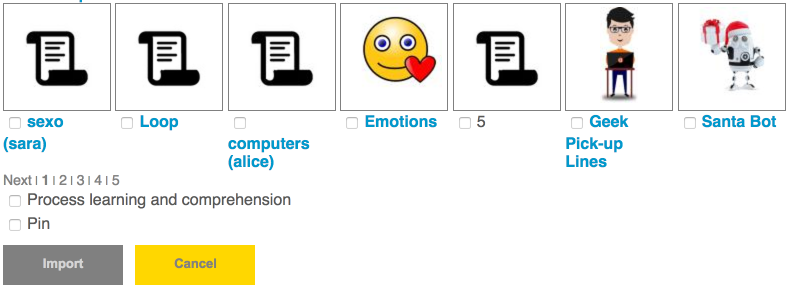
  • import : import a chat log, response list, or AIML script from the shared script library

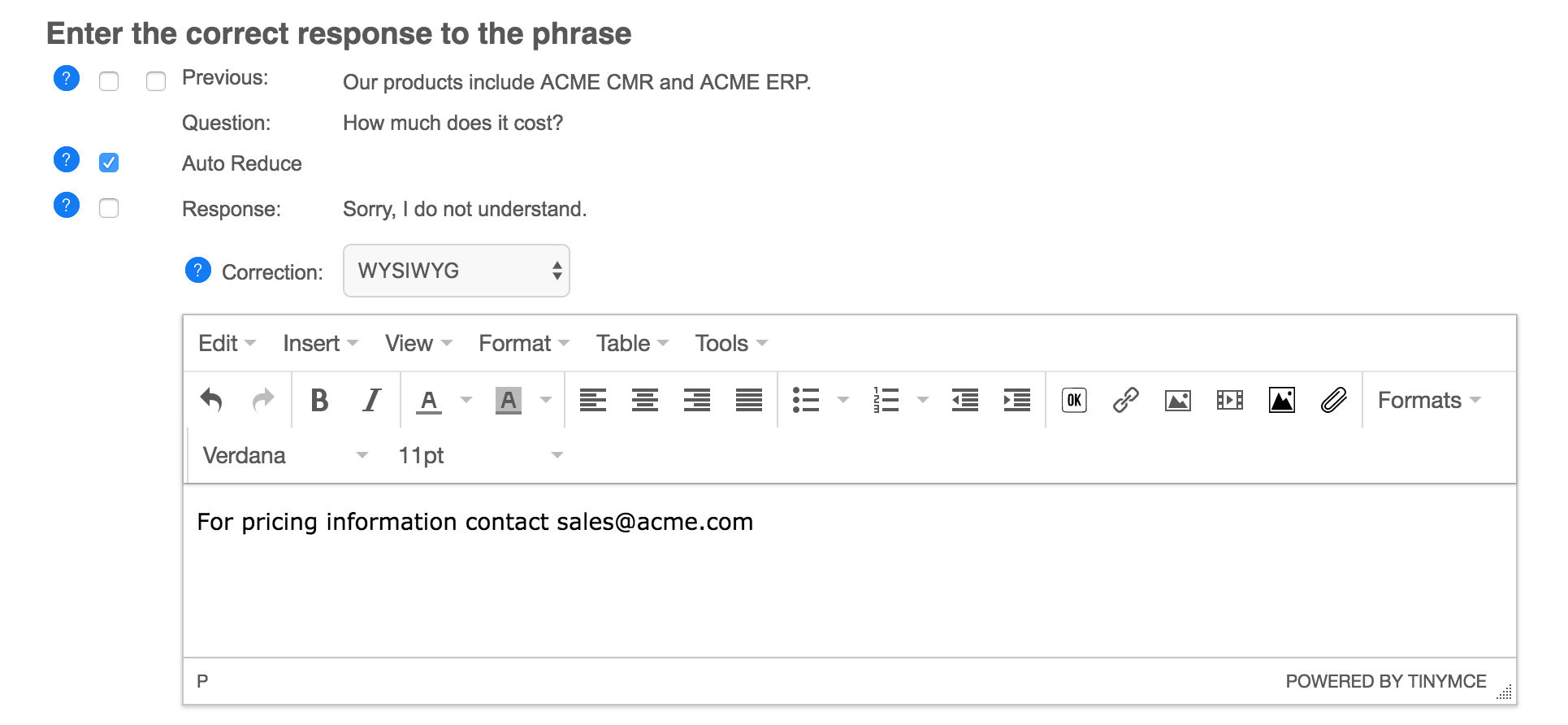
When you review your bot's chat logs, search for relevant questions that it answered poorly. Click the checkbox beside its response to the question, and click the correction button. This will take you to a screen to enter a better response to the question. Enter the response, and optionally a keyword or required words from the question, or a topic to categories the response. Click Save. Your bot will now answer this question, and similar questions, or questions with the keywords, using your new response.

If the user's question was specific to the bot's previous response, then click the checkbox beside the bot's previous response. This will add the previous response to the new response, so that it will use this response in the correct context.

Responses

To see all of your bot's trained responses, search for responses for the all duration. This will list all of your bots responses, ordered by when they were added. A response will not only be used for the exact question it was learned for, but also any similar questions. When your bot encounters a question it does not know a response to, it will find the best matching question that it knows a response to, and use that response. If the bot does not know any similar questions, then it will use its default response.

The response browser lets you enter a new response, or edit, delete, invalidate, validate, or flag any existing responses.

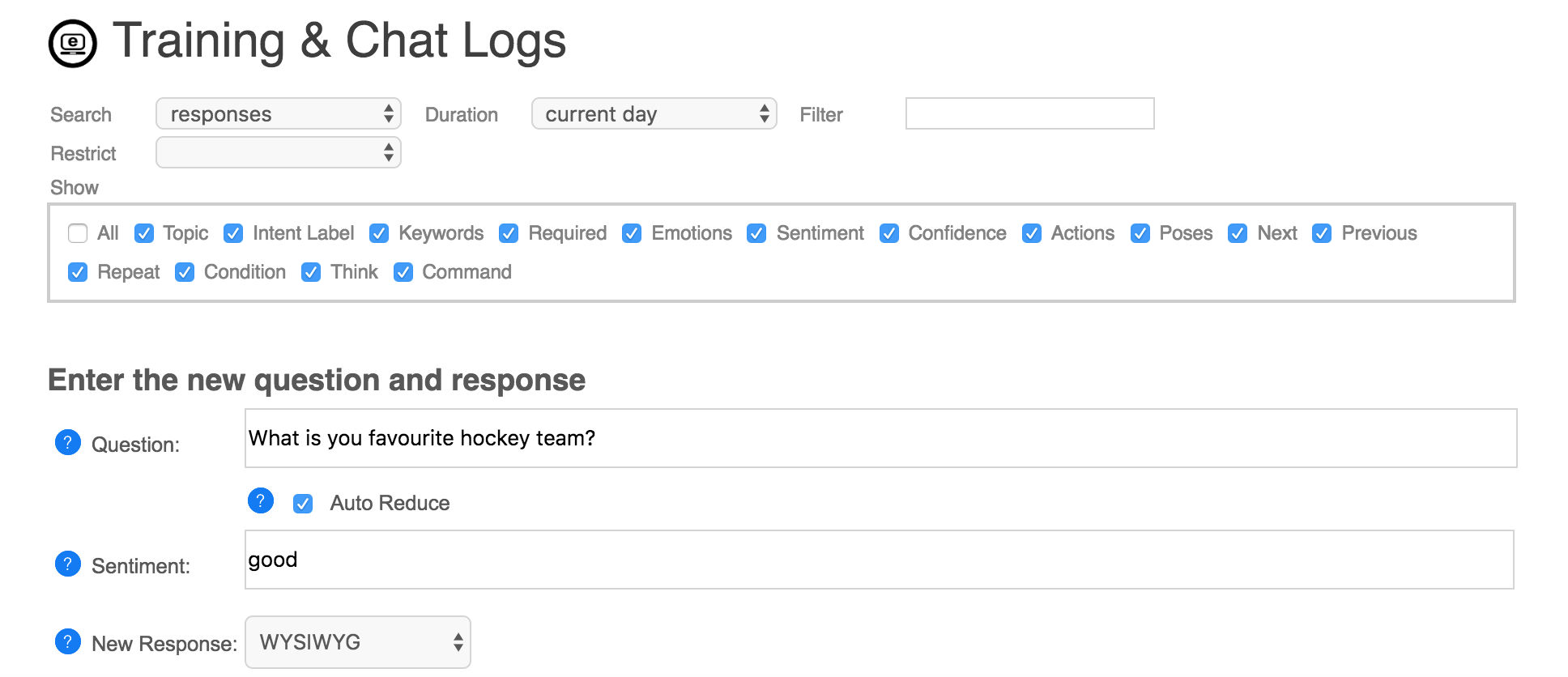
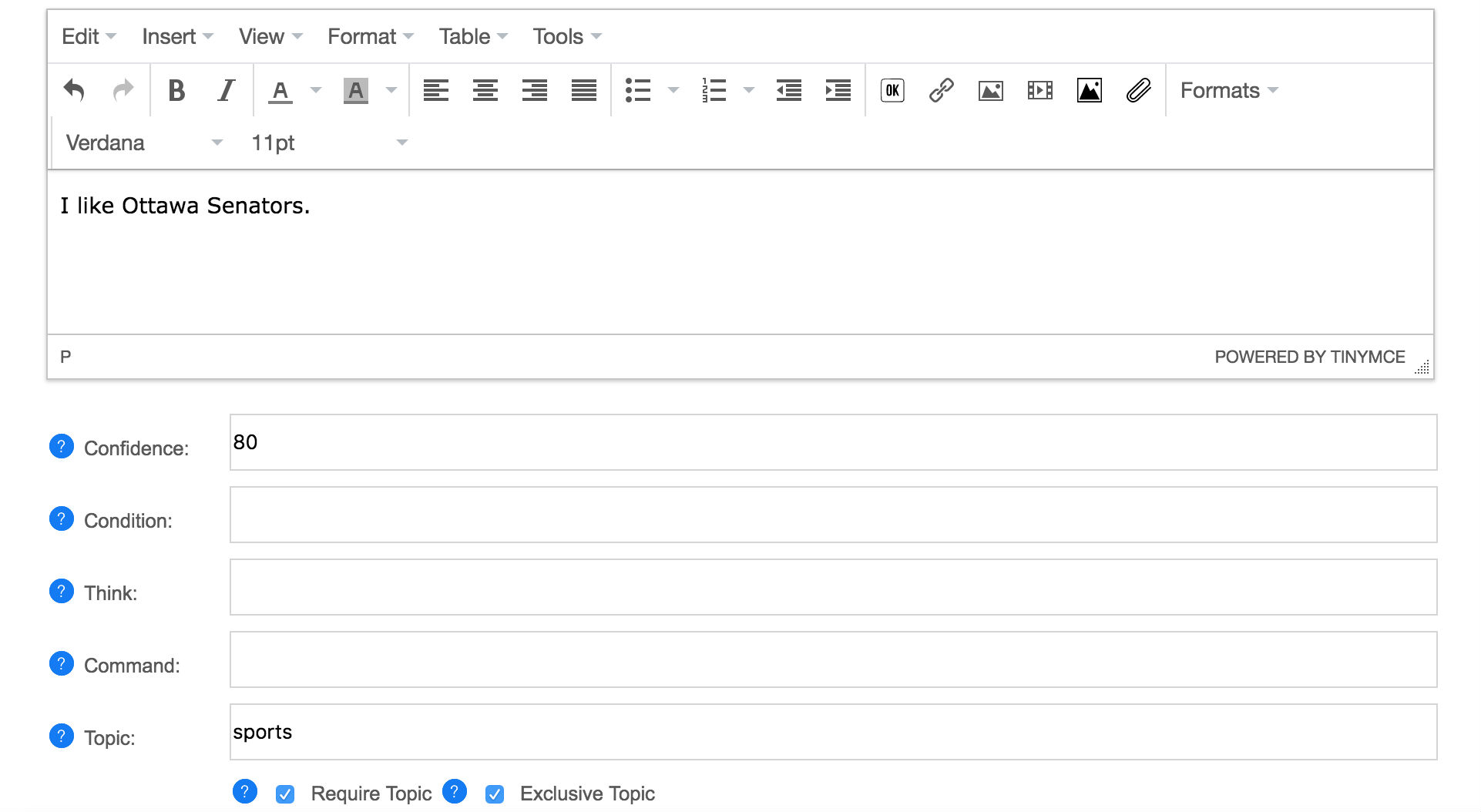
The response editor lets you enter the question and response and optional response properties and metadata. You can choose to edit your response using a rich 'WYSIWYG' (what you see is what you get) editor, or a plain text editor. Responses are in HTML, and can contains most HTML tags such as <b> for bold, <a> for links, <img> for images, and <button> for buttons.

Response Properties and Metadata

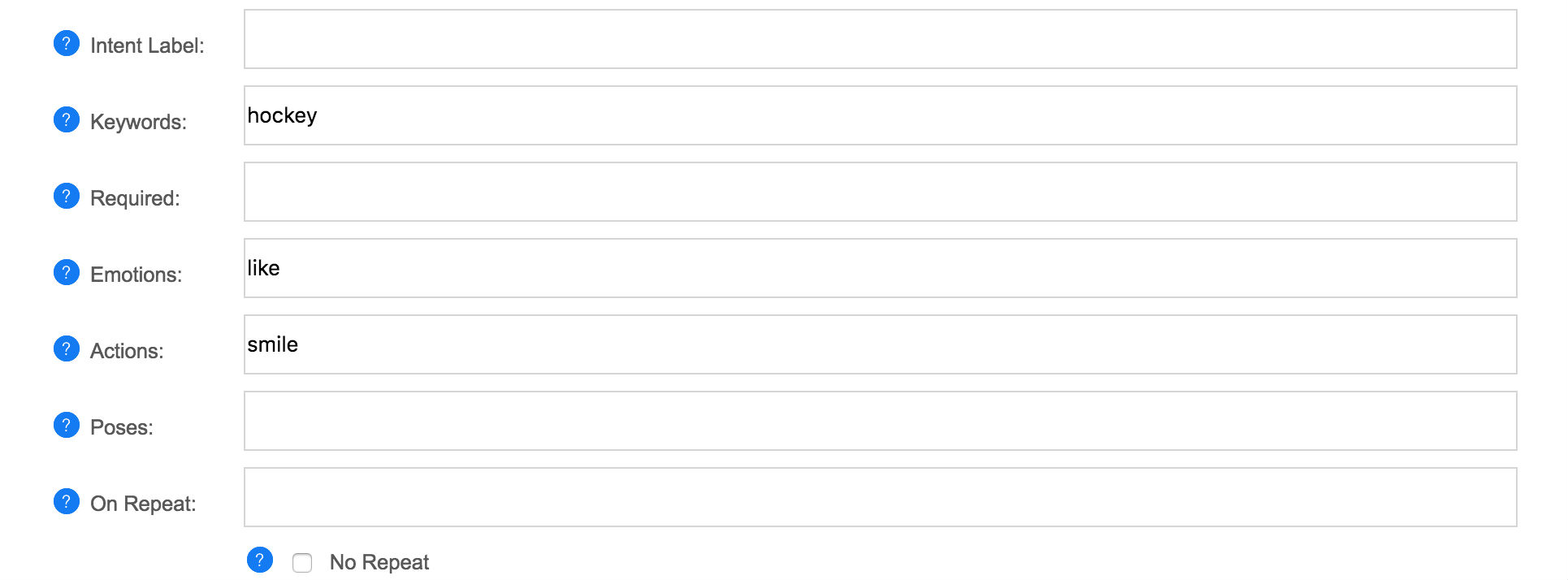
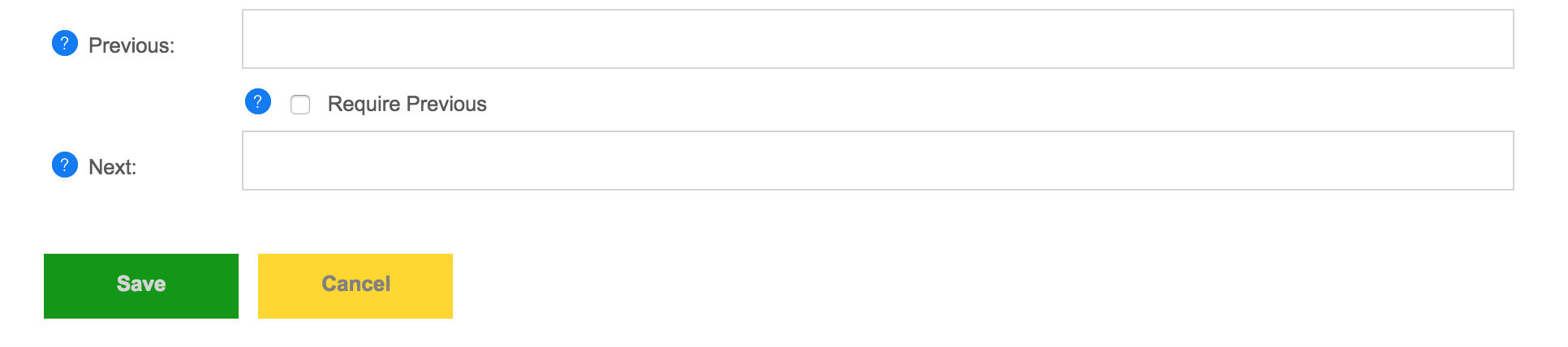
Response can contain several different metadata properties that can be set to influence when the response is used, or how it functions. To show the different response properties click on the checkbox for the property under the toolbar. For example to show topics, click on show 'Topic' checkbox, and then the response topics and topic input will be available.

To edit a response and its properties, click on the checkbox before the response in the list of responses, then click on the 'Edit' toolbar button or menu. You do not need to enter any of the response properties, but they can be used to improve when you bot uses its responses, and for more complex conversational dialogs.

Keywords

Keywords are important words in the question that should influence when the response is used.

Keyword Example
// Keywords are used to allow this response to be used for any questions on hockey or spinach.
question: do you like hockey
response: Hockey is my favorite sport.
keywords: hockey

question: i love spinach
response: Spinach is is my favorite food.
keywords: spinach

A keyword will be used by the bot to select the best response. Keywords let some words count for more than other words. In the example, the bot knows two responses, how will it respond to the phrase "I love hockey"? Without the keywords the bot would probably match this question with "I love spinach", but since hockey is a keyword, it will instead match it with "Do you like hockey?".

If the response has no defined required words, then the keywords will also be required for the response match. So "I love hockey" would not be matched with "I love spinach." because it is missing the keyword.

Be careful using too many keywords. If every word is a keyword, then their value is diminished. Never make common words like "the", "a", "he", "what" keywords, if you require one of these words for a match use a required word instead.

You can also review all of your bot's keywords by searching for 'words' and restrict to 'keywords'. This lets you remove a word from being a keyword if you added it by mistake.

Required

A required word is a word that is required to be in the question for a specific response.

Required Example
// This example requires the words 'like' and 'hockey'.
question: do you like hockey
response: Yes, I like hockey.
required: like hockey

A required word can be used to ensure the bot does not choose a response if the required word is missing from the question. For example the question "Do you play hockey?" would normally be matched to this response, but because it is missing the required word "like", it will not be considered as a match.

Previous

A previous responses is the bot's preceding response. Previous responses can be used to give a response a context.

Previous Example
// This example uses previous to give different answers to 'yes' depending on the context.
question: yes
response: Great, wanna go out sometime?
require previous: Are you single?

question: yes
response: I am please to hear that.
require previous: Are you happy?

The question "Yes" has multiple responses. The bot can use the previous response to choose the best response. You can also invalidate a previous response to ensure the bot does not use a response if the previous response was preceding.

A previous response can either be 'required' or optional. If required, the response will never be used unless one of the previous response matches. If optional (default) the response is given precedence if the previous response matches, but can still be used if the previous does not match.

Topic

A topic is the general topic category for the response. For example a response on a hockey related question would belong to the "hockey" topic. You can use topics to categories your responses and give the bot additional context. If the bot has multiple responses to a question, it will use the one that matches the current topic.

Topics can be either optional or required. The response topic is optional by default, it you click on 'Require Topic', then the response will only be used if that topic is active in the conversation. If optional the topic will be set as active for the conversation, until a new topic is set.

Topics can also be defined as exclusive. An exclusive topic defines an isolated conversational space. For a normal topic that is not exclusive the bot can still use responses that do not have the same topic, but responses with the active topic will be given precedence over responses without a topic. For exclusive topics only response that have the same topic as the active topic will be used. No other responses will be used (other than possibly the default response if there is no topic default).

Topics can also be set on greetings to start the conversation with a topic. Topics can be set on default responses to provide a different response when that topic is active.

Topic Example
// Categorizes the product response.
question: what are your products
response: Our products include ACME CRM and ACME ERP.
topic: products

// Use an exclusive topic to define a joke conversational dialog.
question: joke
response: Knock knock.
exclusive topic: joke

question who is there
response: Boo.
require topic: joke

question: boo who
response: Don't cry. lol
require topic: joke
think: conversation.topic = null;

default: Say 'Who is there?'
require topic: joke

default: Say 'Boo who?'
require topic: joke
previous: boo

Intent Labels

A response can be given an intent label to let you reuse the same response in other questions. You can also use labels in a response's previous.

Label Example
// Use a label to reuse the common products response.
question: products
response: Our products include ACME CRM and ACME ERP.
label: #products

question: what are your products
response: #products

question: what software do you sell
response: #products

question: are they good
response: Our products are the best in the world.
previous: #products

On Repeats

If the user asks the same question, or similar questions multiple times, you may want your bot to give a different response the second time. On repeat lets you set one or many responses to use the second time that response is triggered in the same conversation. You can also set 'No Repeat' to never repeat the response in the same conversation.

On Repeat Example
// Offer to escalate the issue if the user repeatedly asks for help.
question: help
response: How can I help you?
on repeat: What is the issue that you are having?
on repeat: Would you like me to have a support staff contact you?

question: goodbye
response: Before you go, would you like to take a survey?
no repeat:

question: goodbye
response: Goodbye.

Conditions

Conditions let you enter Self code that must evaluate to true for the response to be used. This is an advanced properties as it requires you understand Self (a dialect of JavaScript), but can be used to do very powerful things.

Condition Example
// Response to goodbye differently based on the time of day.
question: goodbye
response: Goodnight.
condition: Date.get(#hour, Date.time()) > 18

question: goodbye
response: Goodbye.

Think

Think let you enter Self code that is executed when the response is used. This is an advanced properties as it requires you understand Self (a dialect of JavaScript), but can be used to do very powerful things.

Think Example
// Track the user's name.
pattern: my name is *
template: Pleased to meet you {star}.
think: speaker.name = star;

question: what is my name
template: Your name is {speaker.name}.

question: can we change the subject
response: Sure, what would you like to talk about?
think: conversation.topic = null;

Confidence

You can enter multiple responses for the same question. The bot will use the response that it is the most confident in for the current conversational context. By default a response is given a confidence level of 90%, but you can customize the value. Note that in a group discussion such as when the bot is added to a chatroom, or on Twitter, the bot will only use responses that have >=90% confidence.

Sentiment

You can associate a user question or phrase, or individual words with sentiment (good vs bad). Sentiment can be used to track how the user is feeling about the current conversation. The sentiment statistic is tracked by your bot daily and can be graphed from its Analytics page.

question: thank you
response: You are most welcome.
keywords: thank
sentiment: good

question: you suck
response: Sorry, I am doing my best. Would you like me have someone contact you via email?
keywords: suck
sentiment: bad

word: suck
sentiment: bad

word: great
sentiment: great

Next and Conversation Flows

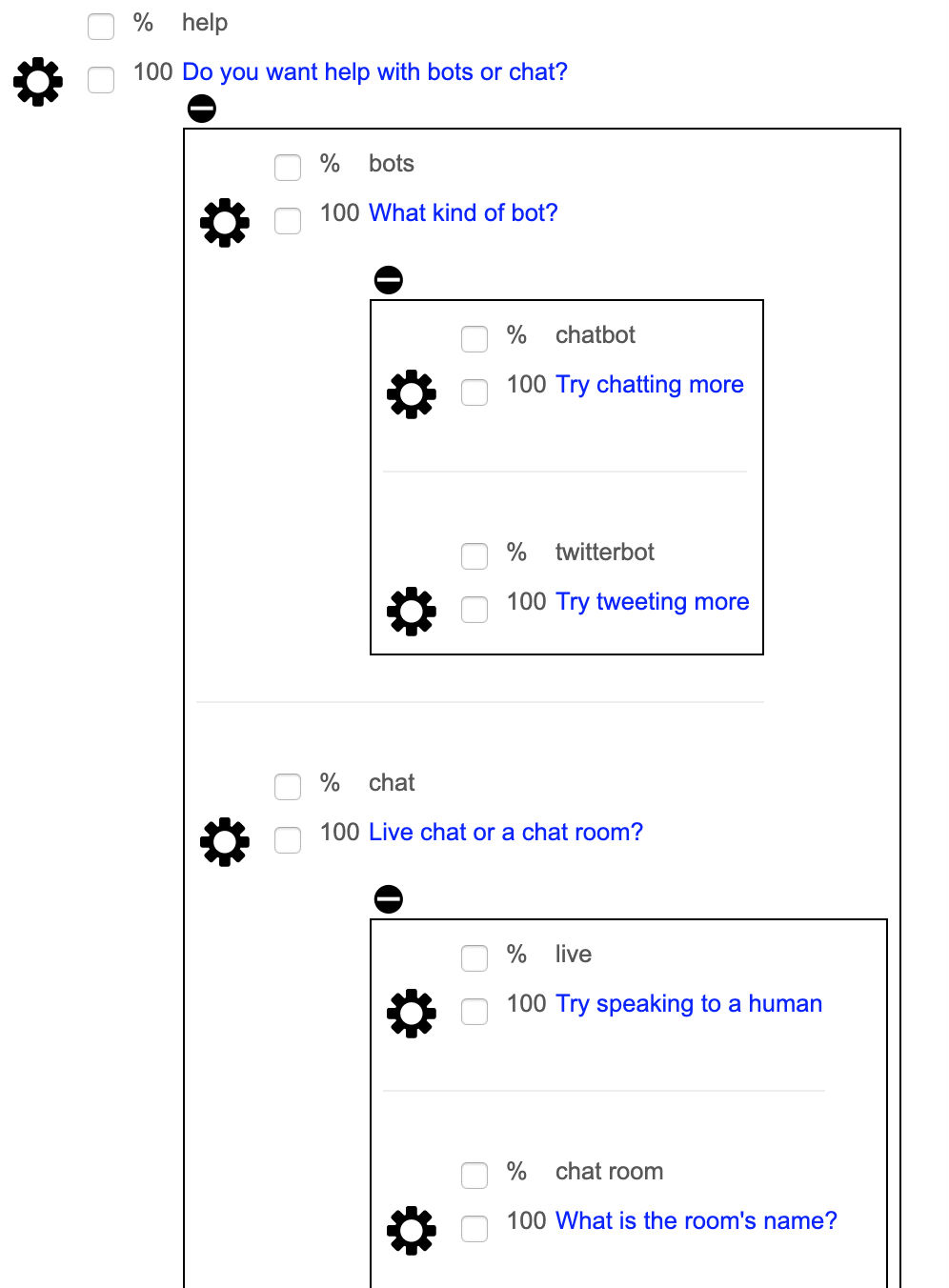
You can add a next question to a response to start a conversational dialog. The next is a follow-up question that the user might ask after the bot gives the response. After you enter the next question and click save, the next question will appear below the response in browse. Click on the question to edit it and define its response (and optionally another next for a nested dialog). You can add multiple next question to a single response. The response's next question form an isolated conversational context.

If a response has a next question, the bot will only choose a response from the response's next, it will not consider any other responses. The bot will find the best matching next question, otherwise use the default response. To enter a default next response, enter the question as #default. You can nest next questions and response to easily form complex conversations.

Example Next Conversation
question: help
response: Do you want help with <button>web</button> or <button>mobile</button>
keywords: help

    question: web
    response: Is you issue with <button>HTML</button> or <button>JavaScript</button>?

        question: html
        response: See https://www.w3schools.com/html

        question: javascript
        response: See https://www.w3schools.com/js

    question: mobile
    response: Are you using <button>Android</button> or <button>iOS</button>?

        question: android
        response: See https://www.android.com

        question: ios
        response: See https://developer.apple.com/ios

    question: quit
    response: Okay. Let me know if you need further help.

    default: Please specify <button>web</button> or <button>mobile</button>, or type <button>quit</button> if you do not need help.

The next question are shown in the response browser as a set of nested tables. You can edit or delete next questions and response from the browser.
Importing

You can import shared, or upload response lists, chat logs, or AIML sets into your bot. Your bot will learn all of the imported responses. This is a good way to kick-start your bot. Be careful of importing too much, or importing responses that are not relevant to your domain, as this will make your bot less able to give responses relevant to its domain.
Response Lists

A response list is a list of questions and responses. Each question and its responses must be separated by a new line. When you import a response list, the bot will learn all of the new responses.

Response List Example
Hello
Hi

Hey
Hello

Hi
Hi

Bye
Goodbye

Good night
Good night, have a good sleep.

You can also include keywords, required, previous, topics, and other meta data in a response list. You can also define default responses, greetings, or execute scripts. A default response is used when no other response is known, and a greeting is used as the bot's first response in a new conversation. A script can include Self code to be executed, which can add knowledge directly to your bot's object database.

Advanced Response List Example
greeting: Hello, how may I be of service?
greeting: Hi, how can I help?

default: Sorry, I do not understand.
default: I do not understand, please rephrase your question.

what are your services
Our services include chat bot hosting and development.
keywords: services
topic: services

error
Are you getting an error?
keywords: error exception

yes
Please email the error to support at support@botlibre.com
previous:are you getting an error

script: #self.botmaster = "Admin";

Note all of the examples in the previous section are in the response list format as well.

Chat Logs

A Chat Log is the log of one or more conversations. Each phrase must be prefixed by the speaker, and each conversation must be separated by a new line.

Example Chat Log

User: Hello
Bot: Hello
User: How are you?
Bot: I am fine, yourself?
User: I'm good.

User: Hey
Bot: Hey whats up?

This log contains two conversations. When you import the chat log, the bot will learn the responses in context, in that it will both record the responses to the questions, and the previous response. This will allow the bot to choose the best response for questions it knows multiple responses to, based on the context. For the example above if you say "Hello" the bot may answer "Hello" or "How are you?", however if its previous response was "Hello" then it will answer "How are you?" because of the context.

You can also add emotions to responses in a chat log. This will tag the word or phrase with the emotion. Emotions will affect the bot's mood and avatar.
The available emotions are:

  • love, like, dislike, hate
  • serene, calm, anger, rage
  • ecstatic, happy, sad, crying
  • courageous, confident, afraid, panic
  • surprise, bored
  • laughter, serious


Example Chat Log with emotions

User: Do you like me?
Bot:<love> I love you.

User:<anger> Your are stupid.
Bot: That is not a nice thing to say.

Bot:<laughter> lol

There is an import option to Process learning and comprehension. Instead of just importing the responses, this will have the bot listen to the conversation and learn from it. If you have comprehension enabled in your bot, it will process each response through comprehension.

Comprehension will analyze the questions and responses and try to generalize the responses into scripted formula responses. For example is may take the response "Bot: My name is Bot" to be generalized to Formula:"My name is {get #name from :target}". Or could learn how to count from the response "Bot: 2" to "User: 1".

It will also lookup each word for its meaning from Wiktionary, and process questions and answer through its state machines. For example the question "User: What is the Earth" will have the bot lookup in Freebase all information related to the planet Earth, and import the information into its brain. Comprehension will take significantly longer to import the chat log, so only use this for small chat log files that you want the bot to learn from.

AIML

AIML stands for the Artificial Intelligence Markup Language. It is an XML standard for defining chat bot responses. You can import any AIML file as a chat log. The bot will learn all of the patterns and templates as questions and responses. It will convert any AIML tags in the template to Template responses using Self code, and use wildcard Patterns for any AIML patterns.

AIML is normally executed as a script, where each pattern either matches or does not match a question. When importing AIML as a chat log, it will not be executed as a script. Each AIML pattern will be matched based on how well it matches the question. For example the pattern "what is meaning of life" could match the question "what's the purpose of life", if it were the best match. Standard AIML would not perform such as match, as only exact or wildcard matches are allowed.

The chat logs method of importing AIML allows the AIML to be integrated with the bot's responses, knowledgebase, and learning. Importing AIML as a chat log is the best way to import large AIML files. You can also import AIML from the Scripts page, if you want the AIML to be executed precisely.

AIML Example
<aiml>
  <category>
    <pattern>*</pattern>
    <template>Sorry, I do not understand.</template>
  </category>
  <category>
    <pattern>*</pattern>
    <template>I do not understand, please rephrase your question.</template>
  </category>
  <category>
    <pattern>what are your services</pattern>
    <template>Our services include chat bot hosting and development.</template>
    <topic>service</topic>
  </category>
  <category>
    <pattern>^ error ^</pattern>
    <template>Are you getting an error?</template>
  </category>
  <category>
    <pattern>yes</pattern>
    <template>Please email the error to support at support@botlibre.com</template>
    <that>are you getting an error</that>
  </category>
</aiml>

Summary

You now should better understand how your bot responses to questions, and how to best train your bot for your domain using Training & Chat Logs, Responses, Keywords, Required, Previous, Topics, etc. If you are interested in learning scripting, you can program more advanced responses using Self or AIML from the Scripts page.

Tuesday, September 9, 2014

Embedding your bot on your own website with the BOT libre JavaScript SDK

BOT libre enables you to embed your bot on your own website. It is quite easy to embed a bot, and only takes a few lines of HTML code. You can embed a bot on your website to provide help or service, to provide information, or just for fun.

The embedding HTML code can be copied from your bot's Embed page under Admin.

The simplest solution is to embed your bot inside your webpage using an iframe. This just displays embedded content directly from the BOT libre website inside your webpage. The Embed page provides lots of options that let you customize the embedded content, such as changing the background color, changing the prompt and button text, or even providing your own CSS style sheet.

Another option is to access the BOT libre web API from your website's server (PHP/Java/etc.), or to access the web API from JavaScript. Using the API directly gives you complete control over the interface to your bot. BOT libre now provides an open JavaScript SDK that makes embedding and accessing a bot using JavaScript a lot easier.

To BOT libre JavaScript SDK is provided as open source under Project libre on GitHub and SourceForge. The BOT libre SDK includes a Java and Android SDK and components, and now includes a JavaScript SDK.

To add the BOT libre JavaScript SDK to your webpage you just need to import it in your webpage's <head> section.

The SDK provides several components that lets you access BOT libre's services including:

  • SDK - static class providing services such as Text To Speech (TTS), debugging, and configuration.
  • SDKConnection - class providing access to the BOT libre web API through JavaScript Data Transfer Objects (DTO). This includes chat bots, live chat, forums, and user administration.
  • WebChatbotListener - class that links the chat bot web API to an HTML form.
  • LiveChatConnection - class providing access to BOT libre's live chat web socket API.
  • LiveChatListener - interface for live chat.
  • WebLiveChatListener - class that links the live chat API to an HTML form.
  • Credentials - class to provide your application credentials including your application id.
  • ChatConfig - DTO class to provide a chat bot message.
  • ChatResponse - DTO class to provide a chat bot response.
  • UserConfig - DTO class to provide user information.
  • BrowseConfig - DTO class to browse or search the bot/channel/forum/domain directory.
  • InstanceConfig - DTO class to provide chat bot information.
  • ForumConfig - DTO class to provide forum information.
  • ChannelConfig - DTO class to provide live chat channel information.
  • DomainConfig - DTO class to provide domain information.

To embed your chat bot you can either use the SDKConnection directly, or use the WebChatbotListener to link the API to an HTML form in your webpage. Using WebChatbotListener is the easiest solution, the following code demonstrates how to create a form and link it using JavaScript.

Example embedded chat bot using JavaScript and HTML

Try it out now live

The above script was included in this page to enable you to talk with Brain Bot.


Speak Disconnect

So that's it, you should now be able to embed your bot on your website or blog using JavaScript.

Tuesday, May 20, 2014

Scripting your bot with AIML

BOT libre now has complete support for the Artificial Intelligence Markup Language (AIML). AIML is a standard XML specification designed for scripting chat bot responses. AIML 1.0 was released in 2001, and the current 1.0.1 release was released in 2011. AIML 2.0 is currently under development. AIML is supported by many different chat bot programs and hosting services. BOT libre supports all of the AIML 1.0.1 tags and a few common extensions.

About AIML

AIML defines how a bot should respond to a question using <pattern> and <template> elements. A pattern represents the user's question, and the template defines the bot's response. The pattern and template elements are grouped in a category element, which can be grouped under topic elements.

Here is a simple "Hello World" AIML example:

This code will make your bot respond with "Hello to you too" to the question "Hello World".

Patterns are normally defined as all upper-case, but are case insensitive, so the case really does not matter. Punctuation is normally stripped from patterns and ignored when matching. Patterns can contain wildcards using the "*" and "_" characters. Both "*" and "_" are the same wildcard, and will match any subset of text, their difference is in only in the order they are applied ("_" patterns are matched first, and "*" patterns last).

Here is a simple wildcard example:

This code will make your bot respond with "Hello to you too" to any question containing the word "hello".

AIML supports contextual responses through the "that" element. The "that" element specifies that the pattern should only be matched if the bot's previous response matches the "that" pattern. This allows the same question to be responded to in different ways, depending on the context.

Here is a joke "that" example:

This code will make your bot tell a joke.

Templates can contain mixed text that include various AIML programatic tags. AIML defines tags for text formatting and conversion, dates, variables, condition statements, and recursion. Templates allow you to create sophisticated and intelligent responses.

Here is the list of AIML 1.0.1 template tags.

  • <star index="N"/> - replaced with value of * in pattern (or Nth *)
  • <that index="M,N"/> - replaced with value of bot's previous response (or Mth previous response, and N sentence of the response)
  • <input index="N"/> - replaced with value of users's input (or Nth *)
  • <thatstar index="N"/> - replaced with value of * in "that" (or Nth *)
  • <topicstar index="N"/> - replaced with value of * in topic (or Nth *)
  • <get name="XXX"/> - replaced by the value of the conversation specific variable
  • <bot name="XXX"/> - replaced by the value of the bot specific variable
  • <sr/> - short form for <srai><star/><srai> (replaced with response to value of * from pattern)
  • <person2/> - converts the text (or <star/>) between 1st and 2nd person (I <-> he, etc.)
  • <person/> - converts the text (or <star/>) between 1st and 3rd person (I <-> you, etc.)
  • <gender/> - converts the text (or <star/>) between male and female (he <-> she)
  • <date/> - replaced with the current date and time, a "format" attribute is also supported
  • <id/> - replaced by the client id
  • <size/> - replaced with the size of bot's memory
  • <version/> - replaced with the AI engine version
  • <uppercase> - converts the text to uppercase
  • <lowercase> - converts the text to lowercase
  • <formal> - converts all words in the text to be capitalized
  • <sentence> - converts the first word in the text to be capitalized
  • <condition name="X" value="Y"> - defines an "if" condition based on comparing the value of a variable to a pattern
  • <condition name="X"> - case statement
  • <condition> - multi-valued if/else statement
  • <random> - choose on of the nested <li> values at random
  • <li name="X" value="Y"> - used in random and condition tags
  • <li value="Y"> - used in random and condition tags
  • <li> - used in random and condition tags
  • <set name="XXX"> - set the value of a variable
  • <gossip> - logs the text
  • <srai> - recursively evaluates the text and replaces it with the response
  • <think> - evaluates the nested statements but does not output any result
  • <learn> - load external AIML file, this is not currently allowed
  • <system> - executes a OS command, this is not currently allowed
  • <javascript> - executes JavaScript code
  • HTML - various HTML tags are also allowed (<b>, <a>, <i>, <ul>, <li>, <p>, <br>)

Here is a complex template example:

This code will make your bot respond to the question "Do you like apples or do you like oranges" with "I love apples and I love oranges".

AIML libre

BOT libre supports both importing and exporting AIML. AIML can be imported in two different ways, either as a program script, or as a chat log.

Importing AIML as a program script is done from the Program page. You can import and order the script with respect to your other scripts files. Scripts can be defined in either AIML or Self.

When you import an AIML file, it will be converted to Self code, and stored in your bot's brain along with all of its other information. The Self syntax for AIML is a hybrid syntax that uses AIML terminology, but with the Self scripting structure. Self is a state machine oriented language defined for BOT libre's AI Engine originally from the Open Pandora's Box pen source project. Self is very different than AIML, but can process any AIML code similar to any other AIML interpreter. AIML imported as a program script will be executed similar to any other AIML interpreter.

Here is the Self code for an imported AIML script:

Importing AIML as a chat log allows the AIML categories to be integrated into the bot's knowledgebase. The pattern/template categories from the AIML file will be merged along with the bot's other question/response pairs that it has learned through conversation, correction, or importing.

The bot will not run the AIML script as a script, it will decide for itself when to use the response. The bot will choose its response based on how well the question matches the responses question, the responses correctness, and the context. Even without a * in a pattern it still may be matched to a similar question, if it is the best match available. This gives you the freedom from having to write a pattern for every possible phrase, by just letting the bot figure it out.

Using AIML in Twitterbots and Email Bots

AIML can be used to script Twitterbots, Email bots, or IRC bots, the same as bots trained through other mechanisms. AIML templates and patterns can be used anywhere other response are. AIML can be used from the Training page, used in correction in the Chat Logs page, or used for autotweets in the Twitter page.

AIML Resources

One of the main benefits of the AIML standard, is that there are a lot of AIML resources on the Internet. The are resources for both learning AIML, and there are many freely available AIML scripts for many domains, and in many different languages.

Talk with ALICE

To see what conversations AIML is capable of, try out ALICE on BOT libre. There are two ALICE bots on BOT libre. ALICE is a bot that has imported most of the ALICE AIML sets from the ALICE foundation. Free bots on BOT libre have a 100,000 neuron limit, and some of the ALICE scripts are very big, so the mp* scripts were left out, as well as a few of the other big scripts. ALICE can chat, and if you type "joke" can tell you a joke.

ALICE libre is a hybrid bot, that has imported the ALICE AIML sets as chat logs, not as scripts. This means she is free to choose her responses. She has learning, and comprehension enabled, so can also learn new things.

Sara is a Spanish language AIML bot, that has imported the Sara AIML set.