Pages

Wednesday, November 9, 2016

Connecting your bot to Google Calendar

Bots can do more than just chat. They can book appointments, service calls, meetings, send emails, and SMS messages.

Bot Libre has support for connecting your bot to Google Calendar to access your schedule and book appointments. To connect your bot to Google Calendar go to your bot's "Google" page in its "Admin Console".

To get to your bot's Admin Console click on the button below its "Chat" button on its page.
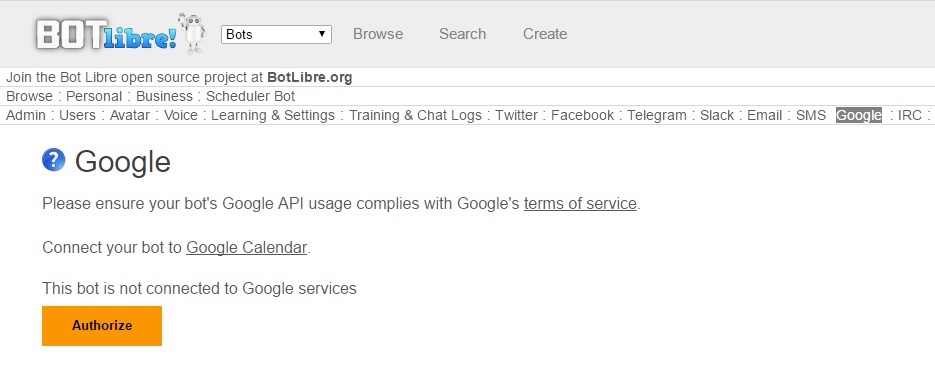
Next, click on the Google tab.

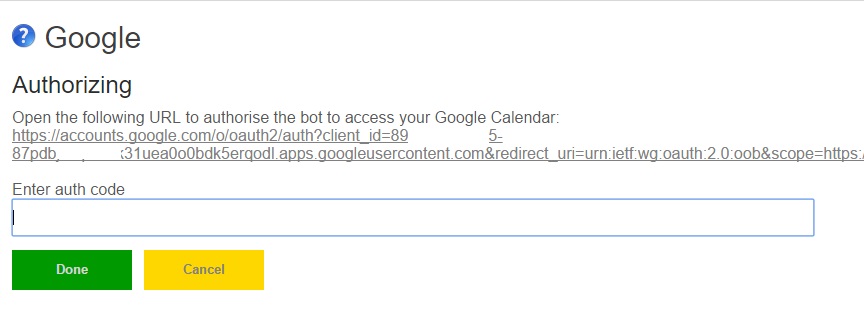
Click on the Authorize button to connect your bot.

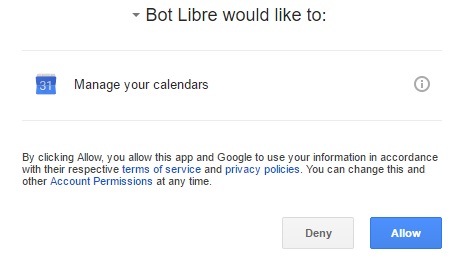
This will give you a link to Google. Click on the link and accept the authorization request.

You will need to login to your Google account. If you want the bot to have its own Calendar you can create a separate Google account. If you do not have a Google account or Calendar you can create one first here.

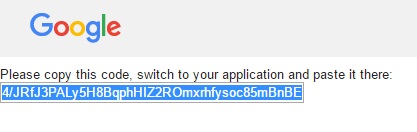
After you accept the request Google will give you a code.

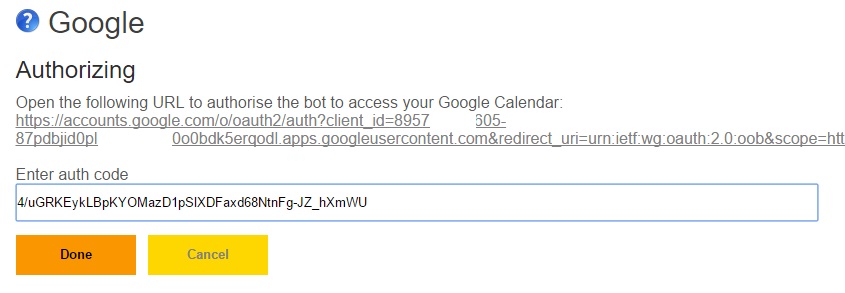
Copy this code and go back to the Bot Libre page and paste it in the text field.

Click "Done".

Your bot is now connect to your Google Calendar and has permission to access it.

You can use the GoogleCalendar class from a Self script to access your calendar.

The GoogleCalendar class has functions like getEvents(from, to), insertEvent(event), and deleteEvent(event). The event objects are Self objects that match Google Calendars JSON format. You can also call requestJSON(url), or postJSON(url, json) to call any Google Calendar web API. For more information of Google Calendars web API see Google's API reference.

If writing your own script seems too complicated, you can also import existing Calendar scripts from our script library.

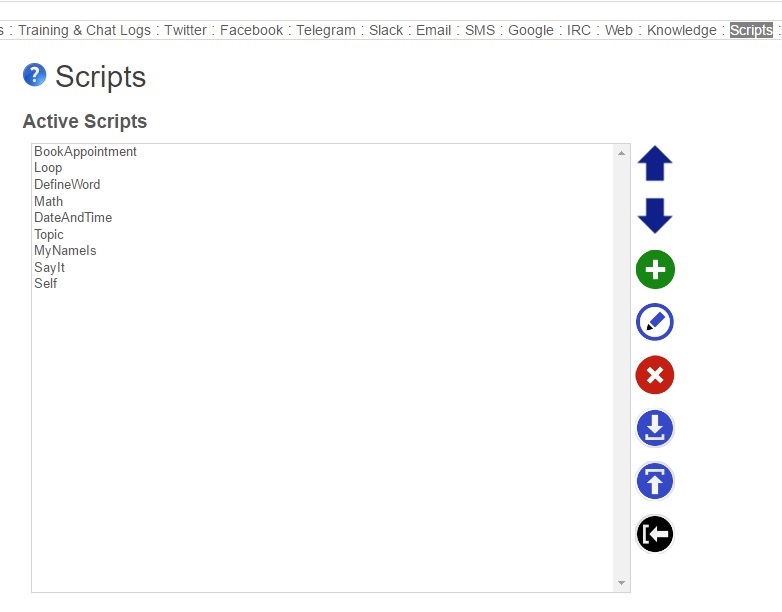
In your bot's Admin Console go to its "Scripts" page.

On your bot's Scripts page there is a blue "Import" button on the right toolbar.

Click on this button to import scripts into your bot.

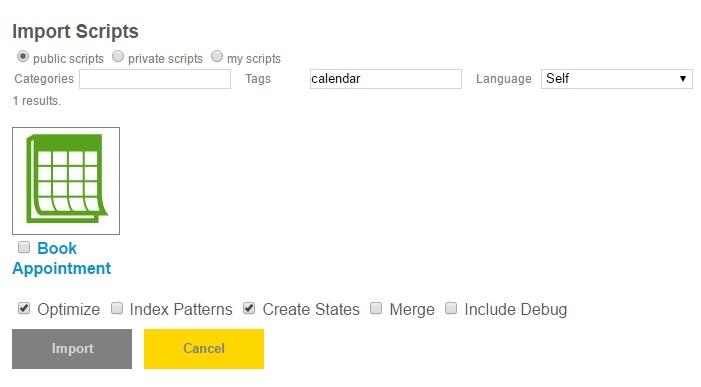
This will give you a lot of scripts to choose from, filter them but typing "calendar" in Tags and "Self" in Language.

Select the "Book Appointment" script and import it.

This script gives your bot the "book" and "cancel" commands that lets a user book appointments to your calendar.

For an example, talk to the Scheduler Bot, or create your own scheduler bot using the scheduler_template.

Wednesday, October 19, 2016

Fanbots - bots in the music and entertainment industry

Bots are commonly used in e-commerce, education and travel industries, but also have great potential in other industries, such as music and entertainment.

Music and entertainment artists need a way to connect with their fans on the web, mobile, and through social media. Many famous entertainers and musicians are good at using social media to promote themselves and keep their fans up to date. Up until now social media has been mainly one-way communication, as it is not possible for an artists to connect directly with millions of fans. Now, with most social media platforms supporting bots, it is now possible for an artists to connect directly with all of their fans.

An artists can create a bot for themselves, or for their band, or brand. They can connect the bot to social media such as Facebook, Twitter, Telegram, Kik, and others. The bot can be trained directly by the artist, or through their agent or a service, to answer common questions from fans, quote their lyrics, or provides audio samples of their music.

An example of bots used in the music industry is Deathbot. On October 10th Deathbot took over the bands Avenged Sevenfold's website to promote their upcoming single. Deathbot was hosted on Bot Libre. Bot Libre made it easy for the bot to be trained to answer fan questions without any requiring any programming, and Bot Libre's animated avatar support helped the bot engage fans on the web.


If you are famous, and looking to connect with your fans, email us at fanbots@botlibre.biz. We can develop your bot for you, and connect it to social media. If you have millions of fans we can setup your own dedicated server through our Bot Libre for Business Dedicated service plan.

Friday, October 7, 2016

How To Connect a Bot to Slack

Through Bot Libre, you can now send and receive messages on Slack with your own bot. You can use this to chat with your bot through Slack or have your bot monitor and response to users in a Slack channel. This "How To" will give you a step by step process to connect your bot with Slack.

Step 1 - Create a Bot

First you must create a bot that you want to connect to Slack, or you can use one of your existing bots. To create a bot, follow the instructions here: How to create your own virtual agent in 10 clicks.

Step 2 - Create a Slack team

Go to http://www.slack.com and create a team.

You will receive a confirmation code via e-mail which you will need to enter on the next page.

Finish filling out information for your username and team name and then continue.

Step 3 - Setup Custom Integration

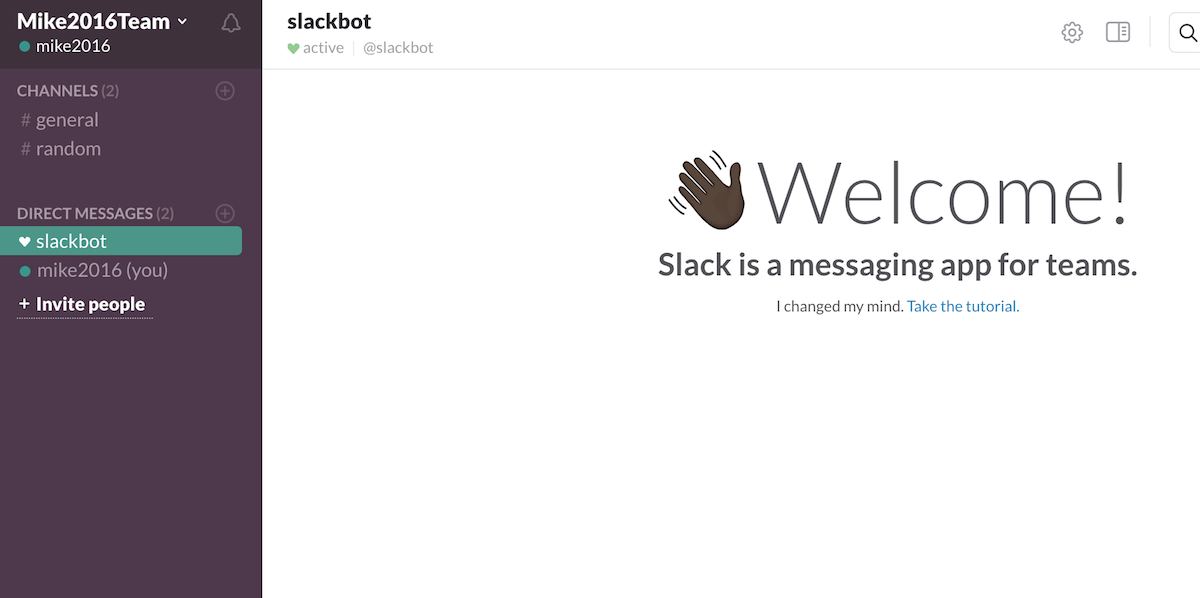
You will now need to set up a custom Slack integration for your bot. Click your team name in the top-left part of the screen and select "Apps and integrations" from the dropdown menu that appears.


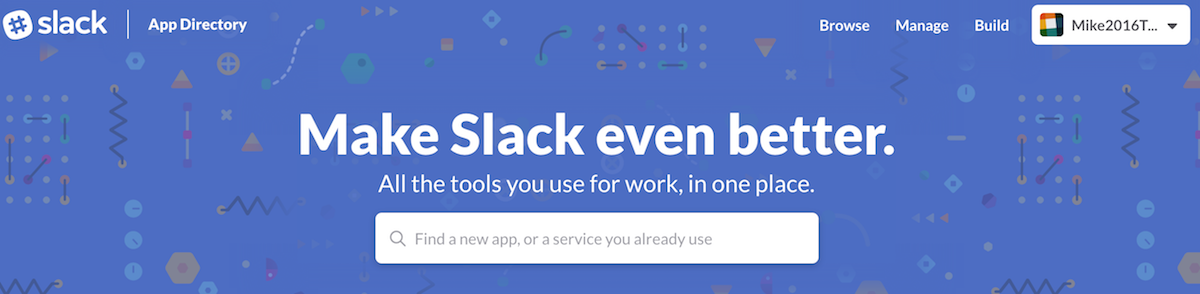
Click the "Build" button at the top-right.

Next, click the "Make a Custom Integration" button to continue.

Step 4 - Create Outgoing Webhook Integration

Setting up an Outgoing Webhook integration will allow your bot to converse with other users in a Slack channel.

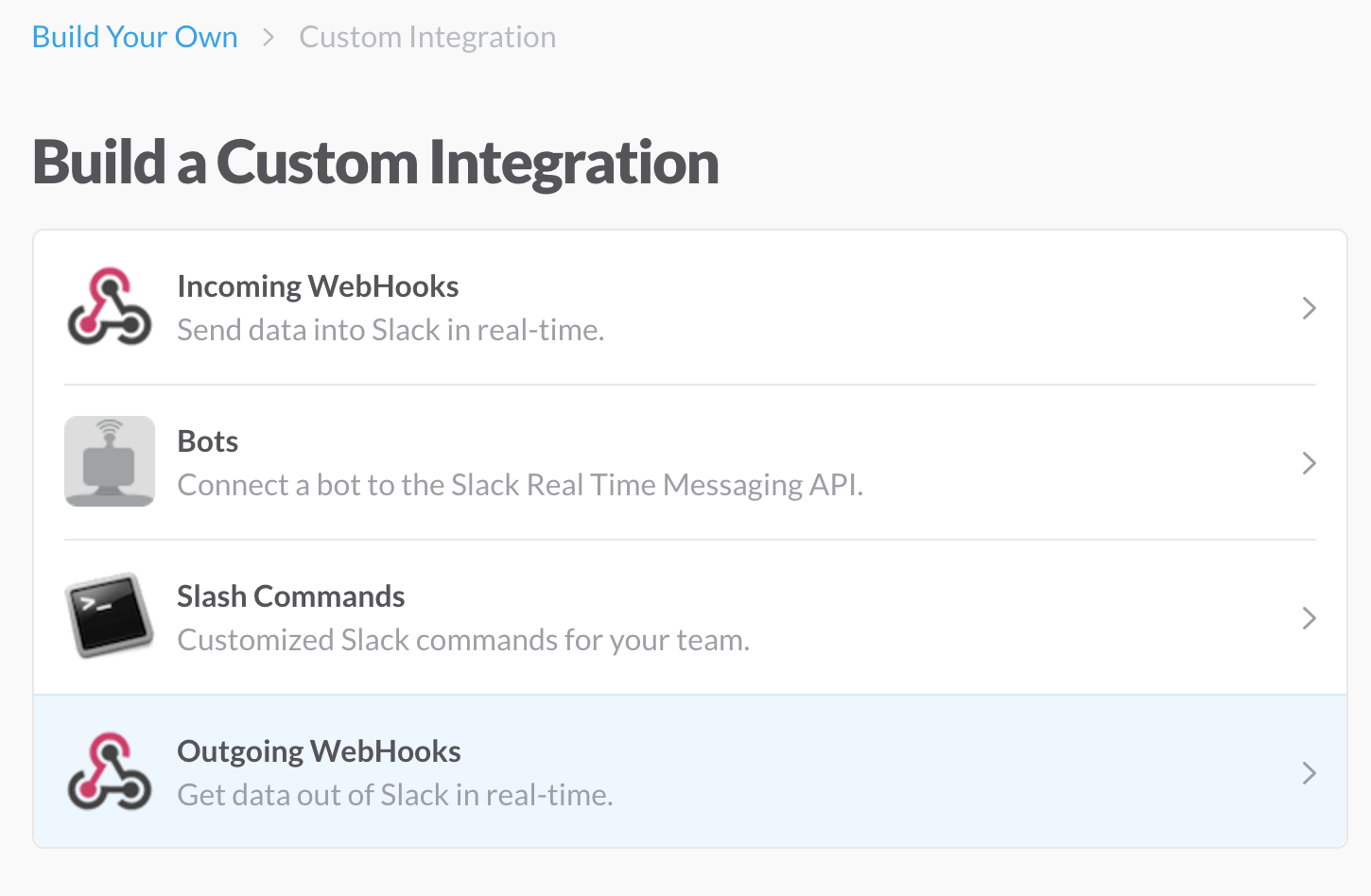
Click "Outgoing Webhooks" to begin.

Click the "Add Outgoing Webhooks integration" button to begin.

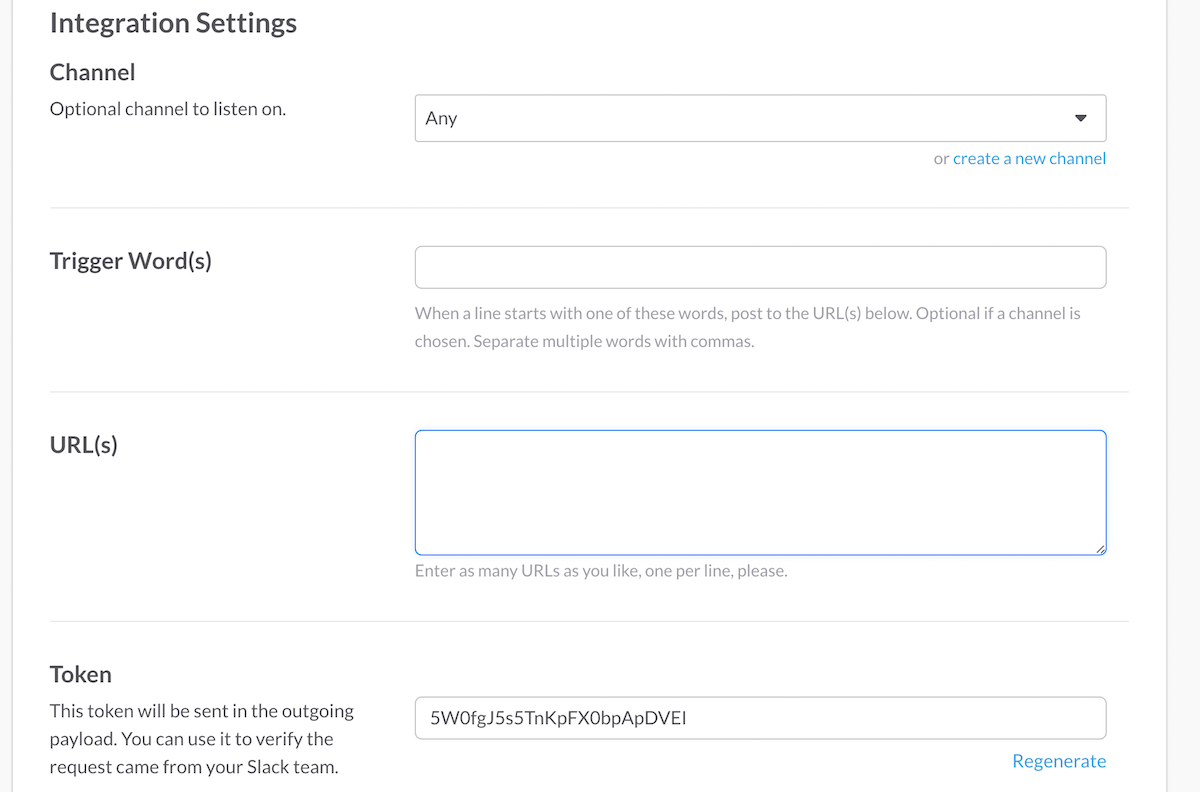
Scroll down to the Integration Settings section.

You can either have your bot listen to all channels, or listen only in a specific channel. If you select "Any", you will have to enter one or more "trigger words" that your bot will respond to. If you select a specific channel though, your bot can respond to any messages in the channel, although you may still enter "trigger words" if you only want the bot to respond to certain messages. Further down on the page you can customize the name and icon that your bot will use when posting to Slack.

We will connect your bot to Slack in the next step. Take note of the "Token" and "Customize Name" from this page, you will need them in the next step.

Step 5 - Setup Bot

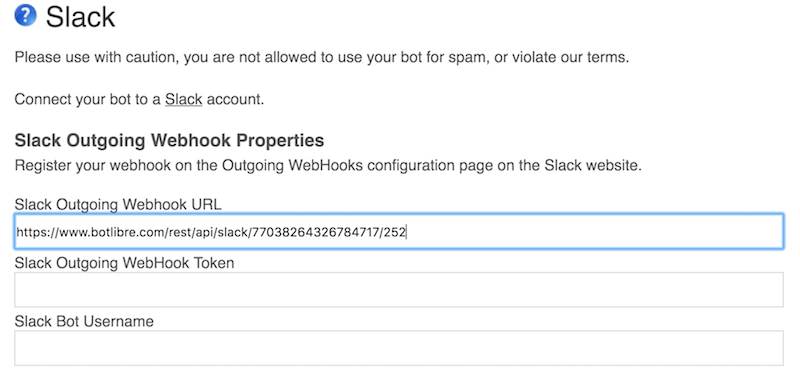
Return to the Bot Libre website and proceed to your bot's admin panel. Click on "Slack" to view Slack settings for your bot.

Enter the "Token" from the previous page into the "Slack Outgoing WebHook Token" field. You may enter the custom name you set on Slack into the "Slack Bot Username" field to have your bot only respond to messages directed at it or mentioned in. 

Next, copy the URL from the "Slack Outgoing Webhook URL" field to your clipboard. Press "Save" to save your bot settings.

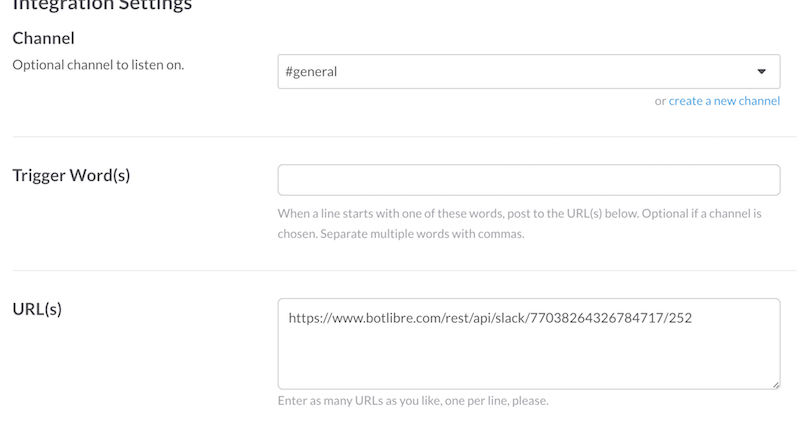
Return to the Slack Outgoing Webhooks integration settings page on the Slack website from the previous step. You will need to paste the URL from your clipboard into the "URL(s)" field.

Press the "Save Settings" button at the bottom to complete the setup. At this point, your bot will be now be able to communicate with users on the Slack channel you have set up above! You may stop here if that is all you want your bot to do.

If you want your bot to automatically post from an RSS feed or make other automatic posts, continue with the steps below.

Step 6 - Create Incoming Webhook Integration

Return to the Make a Custom integration screen on Slack, and select "Incoming WebHooks". 


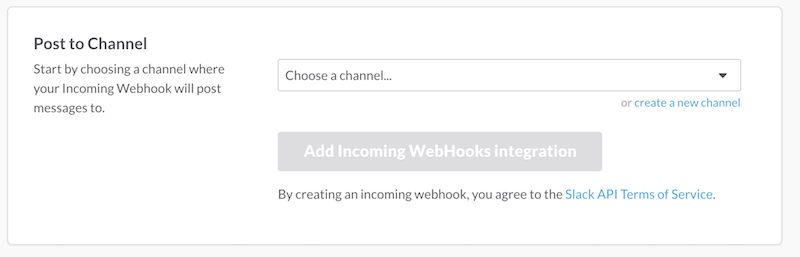
Select the channel you would like the bot to post to, then click the "Add Incoming Webhooks integration" button.

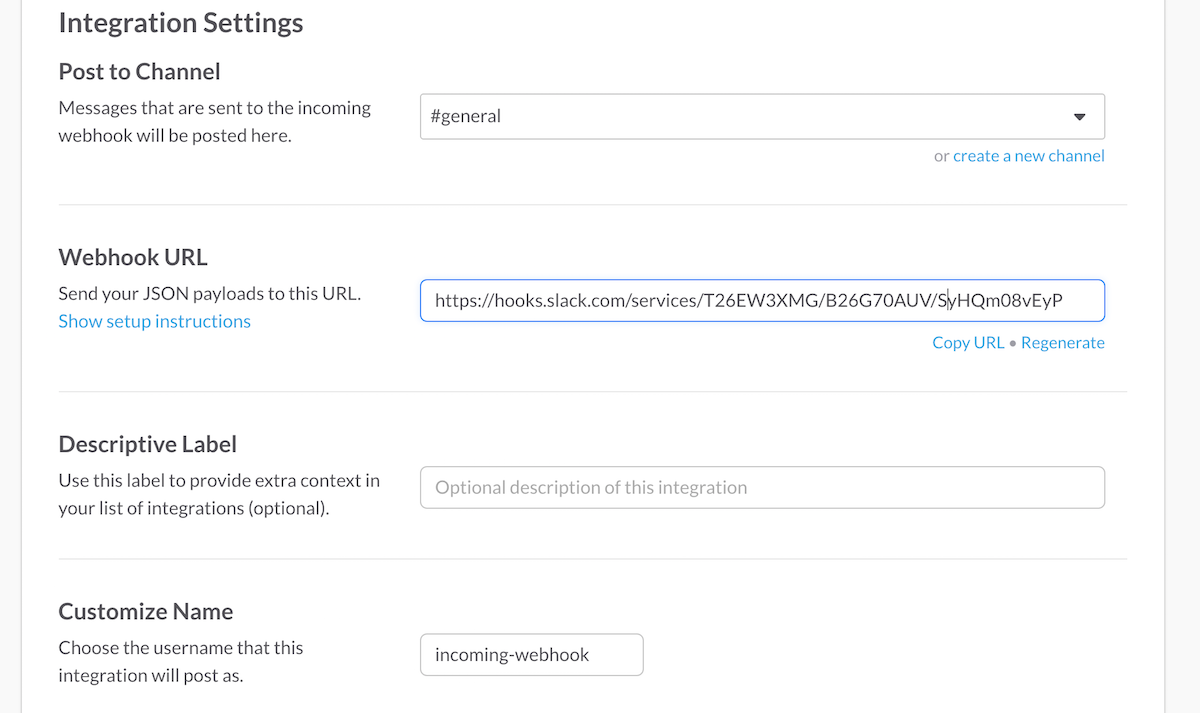
Scroll down to "Integration Settings". You can customize the name and icon that your bot will post as here.

Copy the "Webhook URL" here to your clipboard. Click the "Save Settings" button, and then return to the Bot Libre website and to your bot's Slack admin page.

Step 7 - Setup Bot RSS Feeds and Autopost

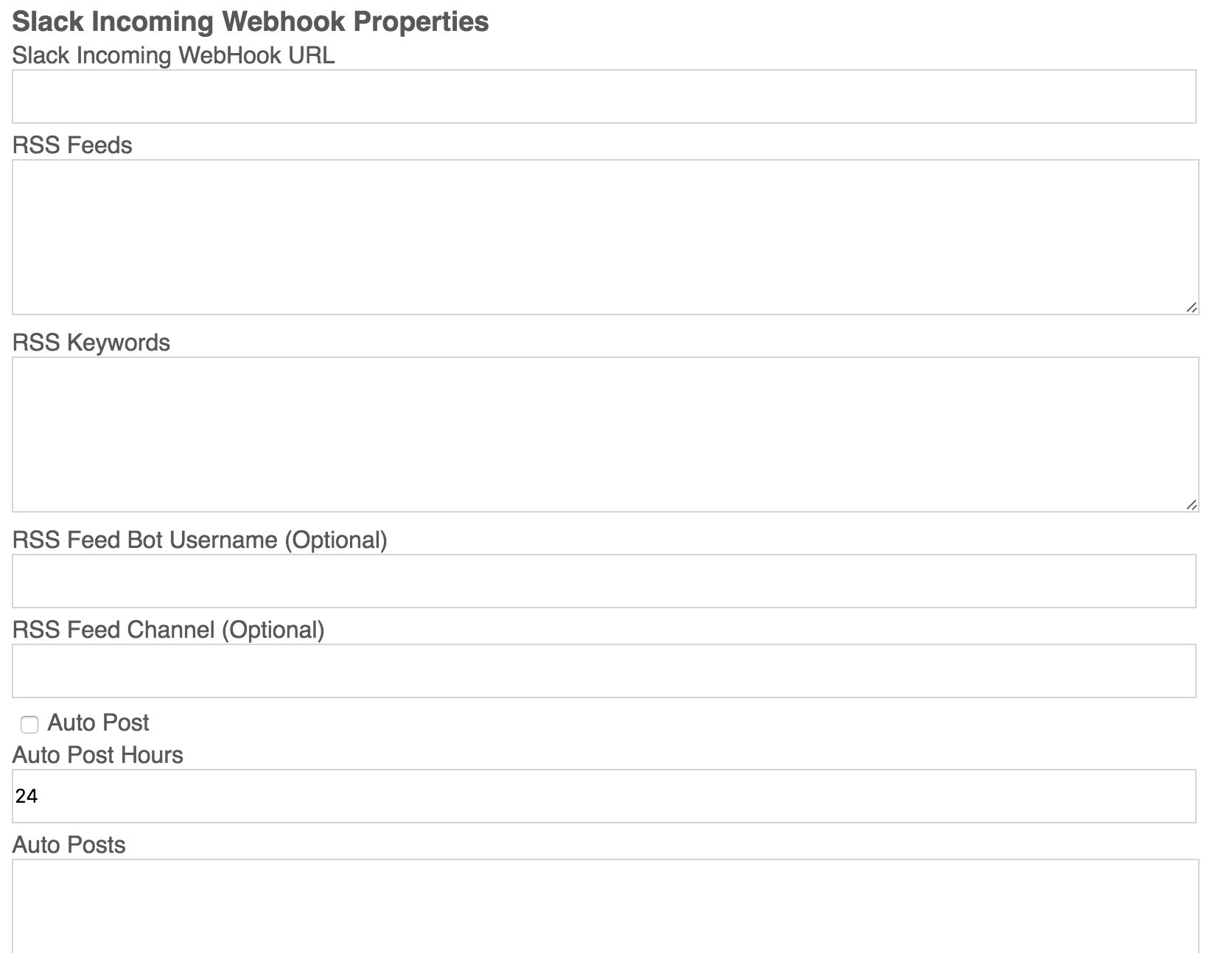
Paste the "Webhook URL" from your clipboard into the "Slack Incoming WebHook URL" field.


Enter the URL's of RSS feeds you would like your bot to post into the "RSS Feeds" field, each separated by a new line. You may enter keywords into the "RSS Keywords" field to have your bot only posts RSS feeds that have one of your keywords in the title. You can also optionally enter a different Bot Username or Channel to post the RSS feeds to that will override the bot name and channel set up on the Incoming Webhooks settings on the Slack Website.

Select the "Auto Post" checkbox if you want your bot to automatically post to a Slack channel at set intervals. You can set the time between auto posts in the "Auto Post Hours" field. In the "Auto Posts" field, you can enter posts that your bot will select from when it autoposts. Each post should be on a new line. You may use 'Self' or 'AIML' templates in these posts. You can also optionally enter a different Bot Username or Channel to auto post to that will override the bot name and channel set up on the Incoming Webhooks settings on the Slack Website.

Thursday, September 29, 2016

New HD 3D Animated Avatars

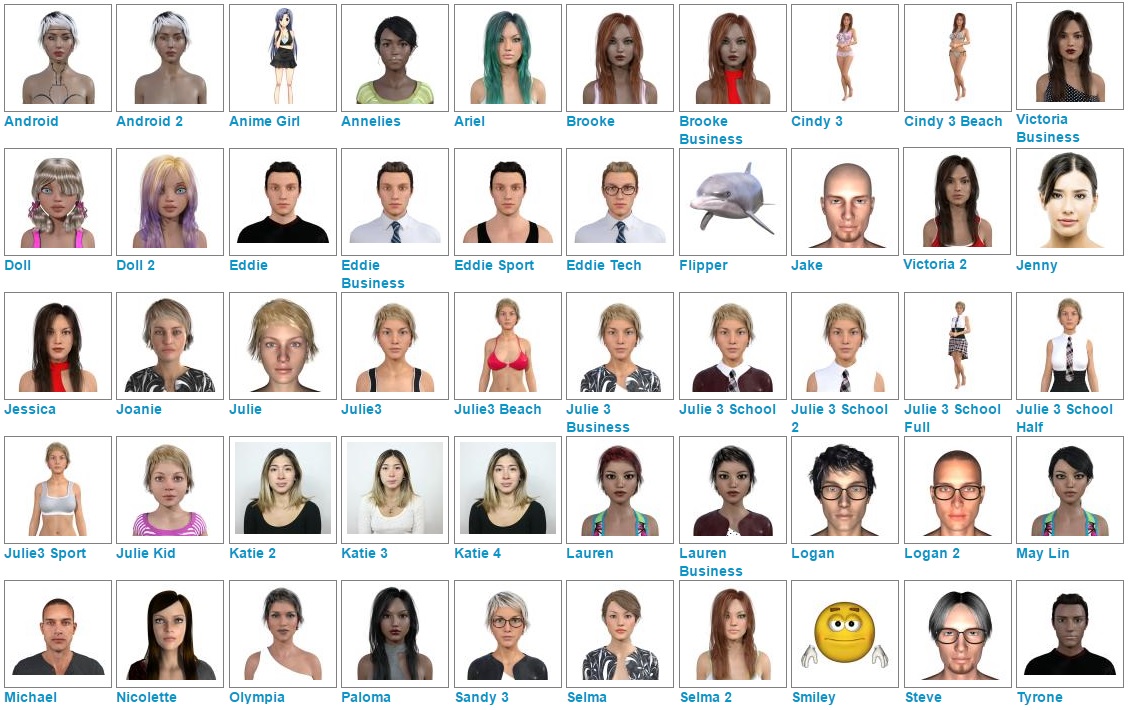
We have recently added many new HD 3D animated avatars to our avatar library.

Some new additions include, Annelies (African beauty), Doll (cute animated doll), Flipper (the dolphin), Eddie Tech (techie), Android, Victoria, Olympia, and many more.

All of the avatars are free to use through our JavaScript SDK, and can be embed on your own website with our text to speech, or connected to your bot. You can connect your bot to our avatars and speech, even if your bot is not hosted on Bot Libre.

If you would like a custom designed avatar for your bot or business, we can custom design you any 3D animated avatar available from Daz3D as part of our Platinum service.

Thursday, September 15, 2016

Connect with your customers everywhere

It is no longer sufficient for a business to only connect with their customers on their website. Customers now use a variety of different messaging and social media platforms, and expect to be able to connect with businesses through social media. If your business is not on Facebook, Twitter, Telegram, or other platforms you are missing engaging with your customers.

Keeping up with the various social media platforms can be a very time consuming and expensive task. Fortunately most social media platforms have open their doors for bots and automation. Bot Libre lets you connect with your customers everywhere, 24x7, and keep your content current across all your social media platforms.

Bot Libre supports bots and automation on many different social media platforms. Instead of having to maintain your businesses presence on many different social media platforms, you can create a bot once, and deploy it on many different social media platforms to chat with your customers, and update content from an RSS feed, or automated posts.

Bot Libre supports connecting bots to Facebook Messenger, Twitter, Telegram, Slack, SMS, IRC, email, web, and mobile. We are also adding support for more platforms every month, and if we are missing a platform that you need support for, just let us know, and we can add support for you.

Bot Libre makes it easy to create and train a bot, without requiring any programming. Bot Libre also makes it easy to integrate with social media platforms, and provides all the hosting and integration, no programming or third party services are required.

Bot Libre provides step by step "how to" articles to help you integrate your bot with many different social media platforms. If you're not that technical, then you can subscribe to our Platinum or Enterprise service, and let us build your bot for you and integrate it with your social media.

For more information see:

Friday, August 12, 2016

Annoucing Bot Libre for iOS 2.0

The Bot Libre iOS app has been updated with a large amount of new features.

The Bot Libre iOS app allows you to create, train and share your own chat bot from your iPhone, iPod or iPad. The chat bots have artificial intelligence and are capable of learning through conversation. You can create your own bot, or chat with other peoples bots. There are thousands of bots on Bot Libre to talk to.

Bot Libre for iOS 2.0 now includes:

  • Avatar library to choose your bot's avatar from a large selection 3D and video animated avatars.
  • Avatar editor to create your own avatar.
  • Training and chat logs
  • New learning options
  • Forums - Create your own forum to share with your friends, colleagues, or customers.
  • Rate and vote up/down content
  • Domains - Create your own personal or business space to host your chat channels, forums, and bots.

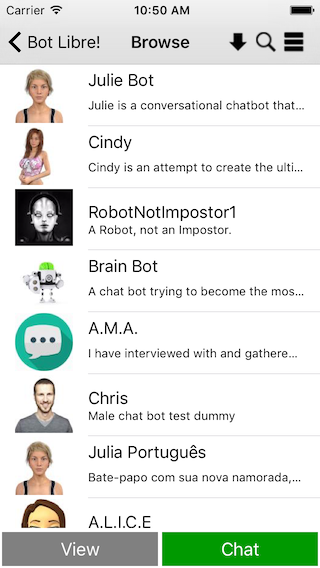
When you connect to Bot Libre, you can now choose to browse or create bots, forums, or domains.

Browse

Browse lets you search content by category, tag or filters, and order the results by several different options. 

Bot Admin

Several new bot admin options have been added.

  • Users - Control who can access your bot, and who can administer it.
  • Avatar - Select and edit the avatar used by your bot.
  • Voice - Choose and configure the voice, and language used by your bot.
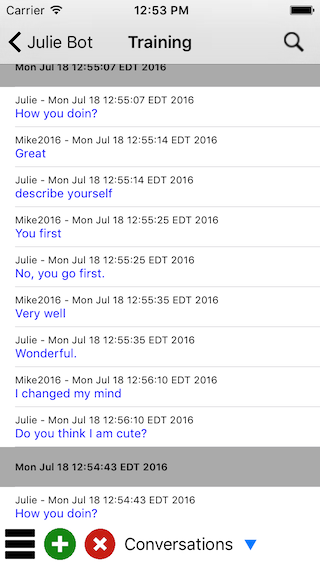
  • Training/Chat logs - Set your bot's greeting phrases, and default phrases to use when it does not know any response. Train your bot with question/answer pairs.
  • Learning - Configure how your bot learns, and who is learns from.


Avatars

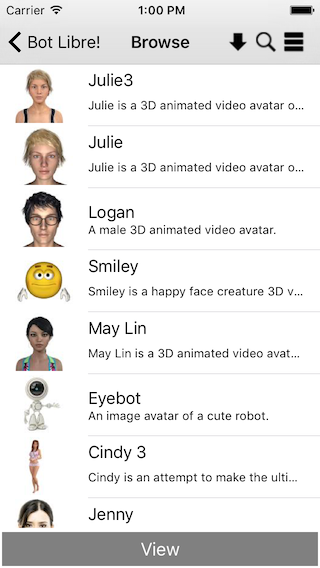
Browse a large selection of 3D and video animated avatars to use with your bot. Or use the avatar editor to create your own avatar by uploading your own images or video.


Forums

You can now browse or create your own forums. You can ask questions, and find answers on the Bot Libre forums, browse other user's forums, or create your own forums. You can create public or private forums, and can control who can access your forum.


Domains

Create your own personal or business space to host your chat channels, forums, and bots.

The Bot Libre iOS app accesses the same bots, forums, and servers as the Bot Libre website. You can access the bots you create from the app on the web. Bot Libre also provides a free open source iOS SDK, and web API that lets you build your own iOS mobile app.

Paid commercial hosting is also available through Bot Libre for Business.

Friday, June 24, 2016

Connect your Bot to the World - XML, JSON, Web Services, HTML Scraping, Twitter, Facebook, Telegram, Email

Bot Libre now supports integrating with XML and JSON web services, HTML scraping, and access to Twitter, Facebook, Telegram, email, and other services. From our scripting languages Self, and AIML you can now access any web service that returns XML or JSON data. You can also scrape information from HTML web pages, and send emails, tweets, Facebook posts, Telegram posts, and more.

Web Services

A web service is an Internet service that provides information on the web. There are countless APIs available on the web that provide every type of service imaginable, such as Google Maps, Twitter, Twilio SMS, and eBay. There also many Internet directories to help you find and use web services such as ProgrammableWeb.

Bot Libre provides web service support through its Self scripting language, and through the AIML scripting language. Bot Libre also provides a script library of common scripts to access many useful web services.

XML Web Services

XML is the parent markup language to HTML. XML defines a text based data format consisting of the data's attributes, elements, and text data. To call an XML webservice you use a web URL with either a GET request, or a POST request.

Bot Libre supports both GET and POST request with Self, and supports GET requests with AIML.

XML GET Example

This example uses the GeoNames web service from GeoNames.org. Geonames can return place names and other geographic information, given a postal code, or other geographic information.

You can apply the same pattern to access many other XML web services.

URL

XML Result

Self Example

You can access web services from Self using a Template object in a response, or from a script. The Http class is used calling the requestXML method and passing the URL, and an optional XPath expression that extract the desired data from the XML document.

XPath is a standard navigation query syntax to access or extract data from an XML document. If an XPath is not given, the call will automatically convert the XML data to a Self object. You can access the object's data using the standard JavaScript dot notation. It is much more efficient to use an XPath, so the entire XML document does not need to be converted and persisted as a Self object.

This example is also available in our script library here

AIML Example

You can access a web service from AIML using the SRAIX tag. SRAIX is an AIML tag used to call other services, or other bots. SRAIX has several attributes, the service must be set to XML to access an XML service, and the URL is given as the SRAIX body. An XPath expression must be provided to the call to extract the desired text data from the XML document.

This example is also available in our script library here

XML POST Example

An XML POST request sends, and receives XML data. Many web services use POST requests so the application can provide data to the call.

This example will actually call the Bot Libre web API using a POST request. This is somewhat unusual, as the bot is already on Bot Libre, but this lets one bot talk to another bot. Be careful doing this, as you do not want bots to get into loops or cycles. You can use this same pattern to call any other web service that takes and returns XML data, even call bots on other servers or APIs. Bot Libre also provides the sraix AIML tag and the request() Self API to allow bots to talk to other bots on Bot Libre or other services such as PandoraBots, and PersonalityForge.

Self Example

This example uses a Self state to forward a question to Brain Bot when the user says "ask Brain Bot".

This example is also available in our script library here

JSON Web Services

JSON is the standard text base object format for JavaScript. JSON can be used to convert any JavaScript object to text, and included attributes, nested objects, and arrays. To call a JSON webservice you use a web URL with either a GET request, or a POST request.

Bot Libre supports both GET and POST request with Self, and supports GET requests with AIML.

JSON GET Example

This example uses the GeoNames web service from GeoNames.org. Geonames can return place names and other geographic information, given a postal code, or other geographic information.

You can apply the same pattern to access many other JSON web services.

URL

JSON Result

Self Example

You can access web services from Self using a Template object in a response, or from a script. The Http class is used calling the requestJSON method and passing the URL, and an optional attribute that extract the desired data from the JSON document.

This example is also available in our script library here

AIML Example

You can access a web service from AIML using the SRAIX tag. SRAIX is an AIML tag used to call other services, or other bots. SRAIX has several attributes, the service must be set to JSON to access a JSON service, and the URL is given as the SRAIX body. A object attribute must be provided to the call to extract the desired text data from the JSON document.

Only basic JSON web services can be called with AIML, as AIML is texted based, not object based. Only direct attributes can be accessed. Since our GeoNames examples returns complex data, an AIML example is not possible.

HTML Scraping

HTML is the markup language used in all websites on the Internet. You can access data from an HTML page using the URL for the page, and an XPath expression to extract the data. Refer to the XML example for a description of XPath.

Bot Libre supports HTML scraping with Self, and AIML.

HTML Example

You can access HTML data from Self using a Template object in a response, or from a script. The Http class is used calling the requestHTML method and passing the URL, and an XPath expression that extracts the desired data from the HTML document.

This example is also available in our script library here

AIML HTML Example

You can access a web service from AIML using the SRAIX tag. SRAIX is an AIML tag used to call other services, or other bots. SRAIX has several attributes, the service must be set to HTML to access an XML service, and the URL is given as the SRAIX body. An XPath expression must be provided to the call to extract the desired text data from the XML document.

This example is also available in our script library here

Facebook, Twitter, Telegram, Email, SMS, RSS

Bot Libre provides several other classes in Self for accessing other services, such as Facebook, Twitter, Telegram, SMS, email, RSS feed, and more.

For example, if your bot is connected to a Twitter account, you can have the bot send a tweet using:

Twitter.tweet("hello world");

This can be used to forward posts from one service to another, or escalate a chat session to email, or notify a human agent using SMS. There lots of examples scripts, here.

When you can connect your bot to the whole world, the possibilities are endless. We can't wait to see what you will build.