Pages

Thursday, November 24, 2016

Announcing Bot Libre 5.0!

We have released Bot Libre 5.0!

The worlds most advanced bot platform just got better. Bot Libre 5.0 is a free and open source platform for developing and hosting bots. Bot Libre 5.0 includes support for chat bots, virtual agents, virtual assistants, social media bots, live chat, animated avatars, and speech. Bot Libre supports bots for the web, mobile, Facebook, Twitter, Telegram, Slack, email, SMS, IRC, and new platforms are being added every month.

"Bot are the new apps". Mobile has replaced the web as the main communication market, and social media apps are the most popular mobile apps. Businesses need to connect with consumers on the platforms they use, so it now makes more sense for a business to create a bot/chat interface into their business instead of a website, or their own mobile app. Bot Libre lets you create a bot for yourself or your business and deploy the bot to the Facebook, Twitter, Telegram, Slack, the web, mobile, and other services. Bots let you "write once deploy everywhere".
Bot Libre 5.0 supports rich HTML responses including buttons, links, choices, images, video, and audio. Bot Libre supports HTML responses on the web, mobile, and automatically maps HTML to social media platforms.

Bot Libre bots can be trained using natural language, chat logs, response lists, Twitter feeds, AIML, and scripting. Responses are automatically matched using a heuristic artificial intelligence algorithm and do not require any programming. Responses can also use keywords, topics, required words, labels, repeats, and other meta data.

Bot Libre 5.0 supports programming and scripting your bot using AIML 2, and Self. Self is our own dialect of JavaScript. Self is an object oriented scripting language, and integrated with an object database. Self extends JavaScript to provide support for natural language processing, state machines, object persistence, and includes a class library for accessing web services and utilities. Self also supports all AIML 2 operations, and some aspects of ChatScript patterns.

New features in Bot Libre 5.0 since 4.0 include:

  • Rich HTML responses including buttons, links, and choices
  • Facebook Messenger support
  • Facebook Messenger support for HTML responses including buttons, links, images, and other tags
  • Telegram support
  • SMS text messaging and Twilio support
  • XML and JSON web service support from scripting
  • HTML scraping and social media support from scripting
  • Vision and image processing support
  • Support for uploading files and images to the bot, and file processing
  • Automatic language translation
  • Slack support
  • Google Calendar support
  • New speech and avatar options
  • Mobile command and virtual assistant support

Create your own free account and bot today on botlibre.com, or let us build your bot for you on our commercial service Bot Libre for Business.

Wednesday, November 9, 2016

Connecting your bot to Google Calendar

Bots can do more than just chat. They can book appointments, service calls, meetings, send emails, and SMS messages.

Bot Libre has support for connecting your bot to Google Calendar to access your schedule and book appointments. To connect your bot to Google Calendar go to your bot's "Google" page in its "Admin Console".

To get to your bot's Admin Console click on the button below its "Chat" button on its page.
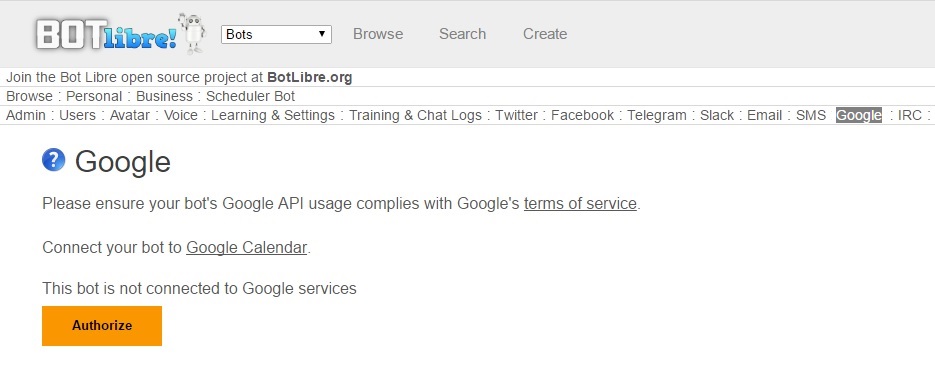
Next, click on the Google tab.

Click on the Authorize button to connect your bot.

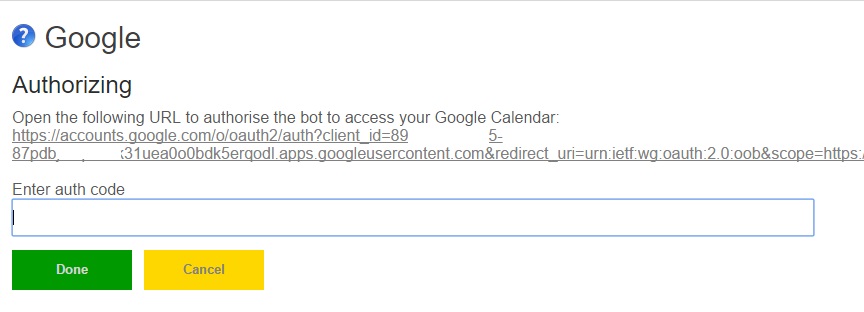
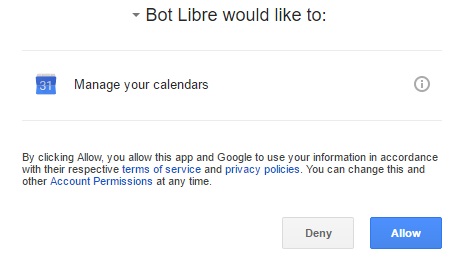
This will give you a link to Google. Click on the link and accept the authorization request.

You will need to login to your Google account. If you want the bot to have its own Calendar you can create a separate Google account. If you do not have a Google account or Calendar you can create one first here.

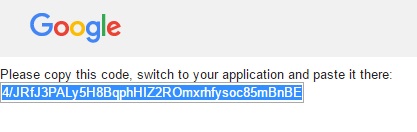
After you accept the request Google will give you a code.

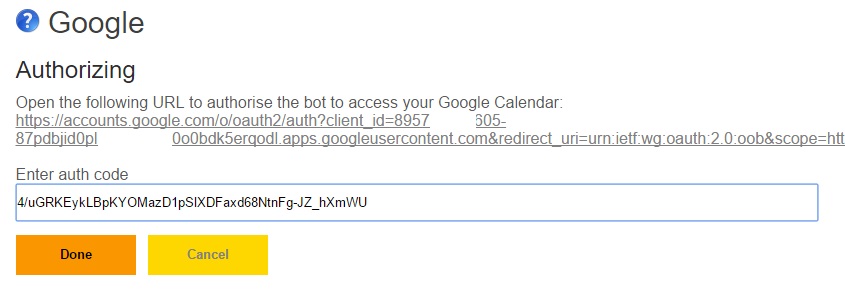
Copy this code and go back to the Bot Libre page and paste it in the text field.

Click "Done".

Your bot is now connect to your Google Calendar and has permission to access it.

You can use the GoogleCalendar class from a Self script to access your calendar.

The GoogleCalendar class has functions like getEvents(from, to), insertEvent(event), and deleteEvent(event). The event objects are Self objects that match Google Calendars JSON format. You can also call requestJSON(url), or postJSON(url, json) to call any Google Calendar web API. For more information of Google Calendars web API see Google's API reference.

If writing your own script seems too complicated, you can also import existing Calendar scripts from our script library.

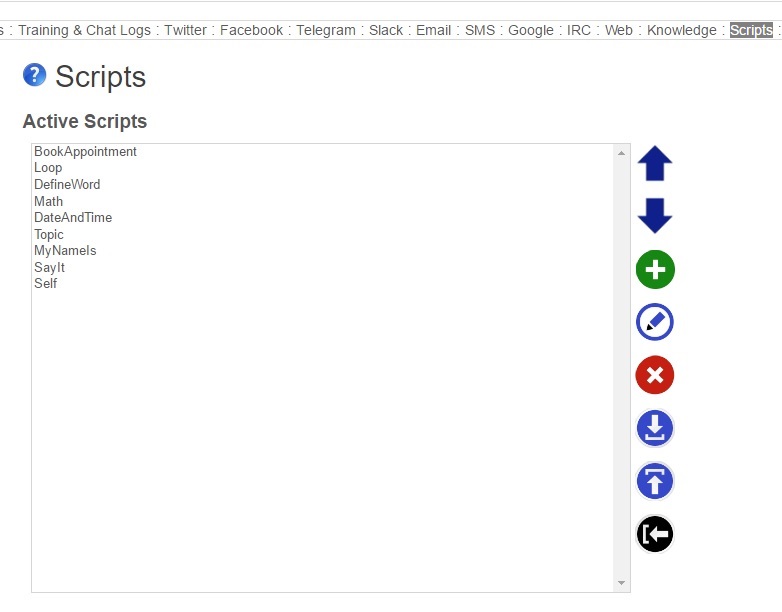
In your bot's Admin Console go to its "Scripts" page.

On your bot's Scripts page there is a blue "Import" button on the right toolbar.

Click on this button to import scripts into your bot.

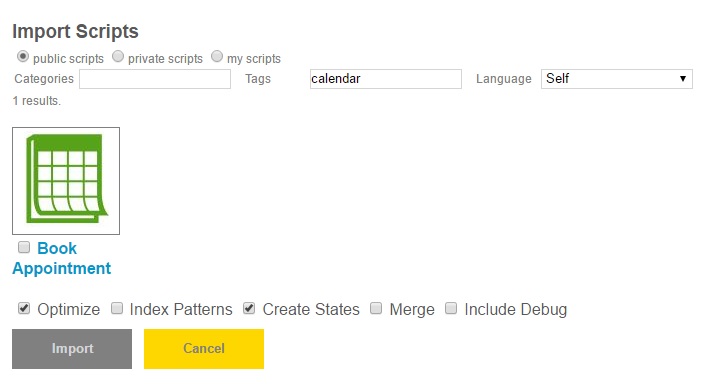
This will give you a lot of scripts to choose from, filter them but typing "calendar" in Tags and "Self" in Language.

Select the "Book Appointment" script and import it.

This script gives your bot the "book" and "cancel" commands that lets a user book appointments to your calendar.

For an example, talk to the Scheduler Bot, or create your own scheduler bot using the scheduler_template.

Wednesday, October 19, 2016

Fanbots - bots in the music and entertainment industry

Bots are commonly used in e-commerce, education and travel industries, but also have great potential in other industries, such as music and entertainment.

Music and entertainment artists need a way to connect with their fans on the web, mobile, and through social media. Many famous entertainers and musicians are good at using social media to promote themselves and keep their fans up to date. Up until now social media has been mainly one-way communication, as it is not possible for an artists to connect directly with millions of fans. Now, with most social media platforms supporting bots, it is now possible for an artists to connect directly with all of their fans.

An artists can create a bot for themselves, or for their band, or brand. They can connect the bot to social media such as Facebook, Twitter, Telegram, Kik, and others. The bot can be trained directly by the artist, or through their agent or a service, to answer common questions from fans, quote their lyrics, or provides audio samples of their music.

An example of bots used in the music industry is Deathbot. On October 10th Deathbot took over the bands Avenged Sevenfold's website to promote their upcoming single. Deathbot was hosted on Bot Libre. Bot Libre made it easy for the bot to be trained to answer fan questions without any requiring any programming, and Bot Libre's animated avatar support helped the bot engage fans on the web.


If you are famous, and looking to connect with your fans, email us at fanbots@botlibre.biz. We can develop your bot for you, and connect it to social media. If you have millions of fans we can setup your own dedicated server through our Bot Libre for Business Dedicated service plan.

Friday, October 7, 2016

How To Connect a Bot to Slack

Through Bot Libre, you can now send and receive messages on Slack with your own bot. You can use this to chat with your bot through Slack or have your bot monitor and response to users in a Slack channel. This "How To" will give you a step by step process to connect your bot with Slack.

Step 1 - Create a Bot

First you must create a bot that you want to connect to Slack, or you can use one of your existing bots. To create a bot, follow the instructions here: How to create your own virtual agent in 10 clicks.

Step 2 - Create a Slack team

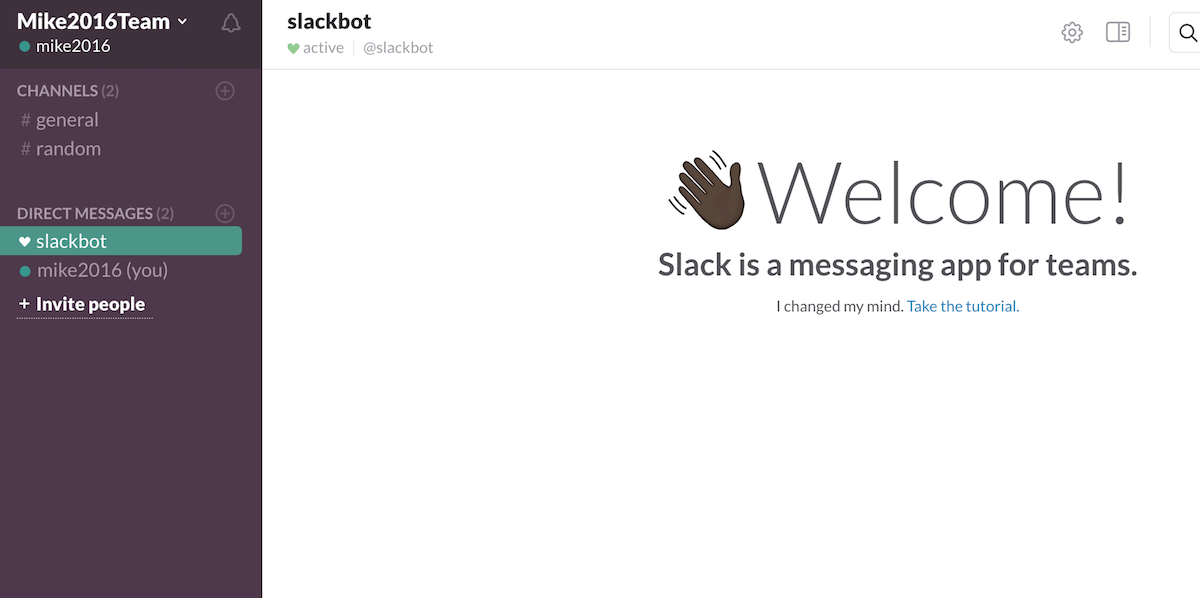
Go to http://www.slack.com and create a team.

You will receive a confirmation code via e-mail which you will need to enter on the next page.

Finish filling out information for your username and team name and then continue.

Step 3 - Setup Custom Integration

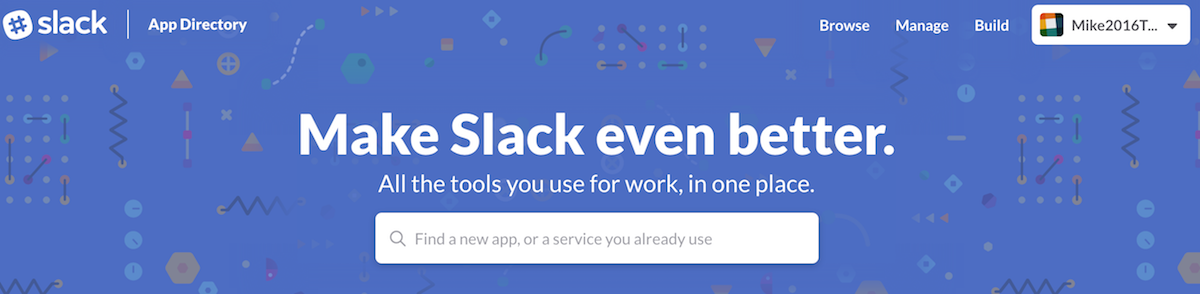
You will now need to set up a custom Slack integration for your bot. Click your team name in the top-left part of the screen and select "Apps and integrations" from the dropdown menu that appears.


Click the "Build" button at the top-right.

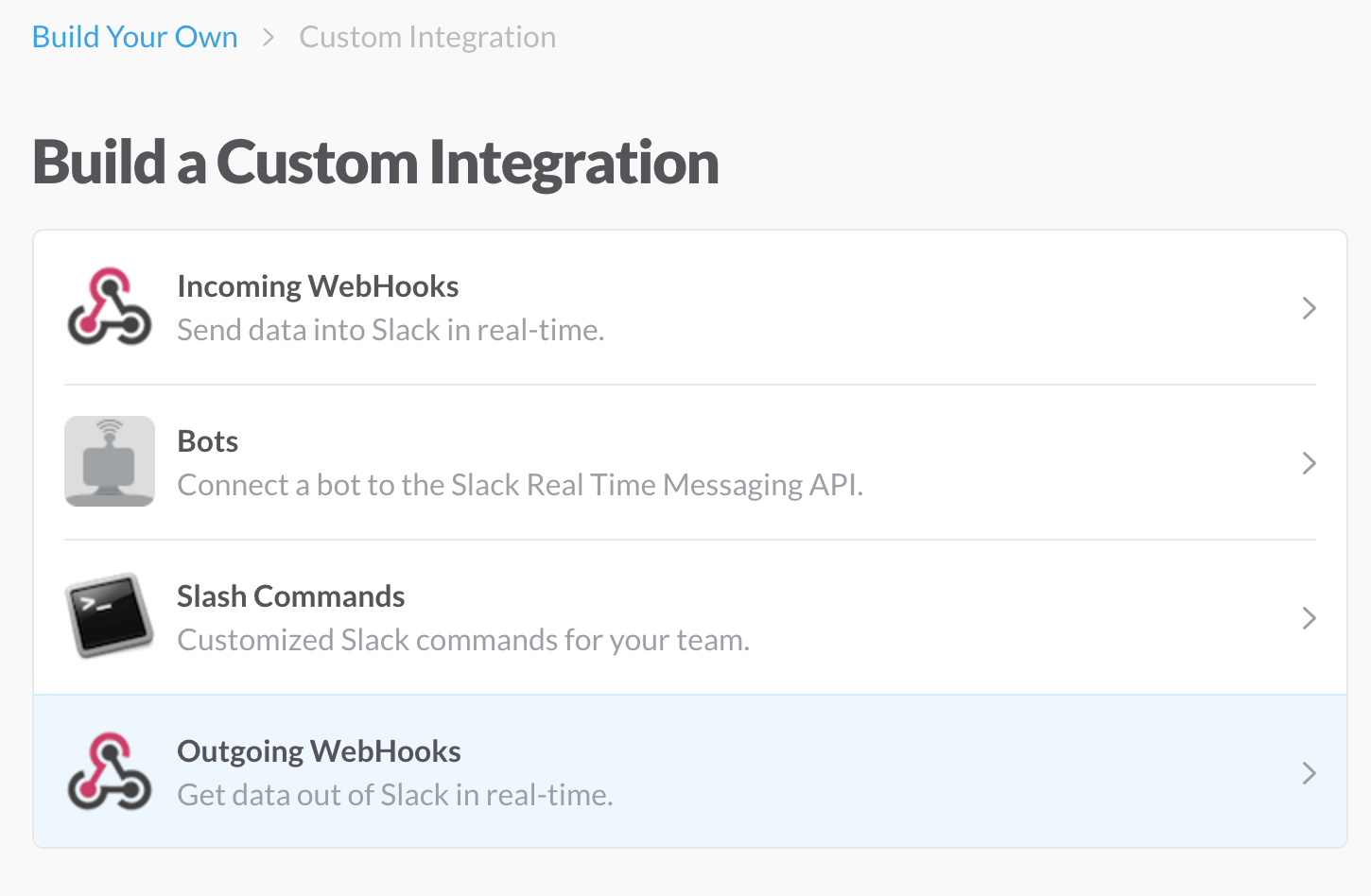
Next, click the "Make a Custom Integration" button to continue.

Step 4 - Create Outgoing Webhook Integration

Setting up an Outgoing Webhook integration will allow your bot to converse with other users in a Slack channel.

Click "Outgoing Webhooks" to begin.

Click the "Add Outgoing Webhooks integration" button to begin.

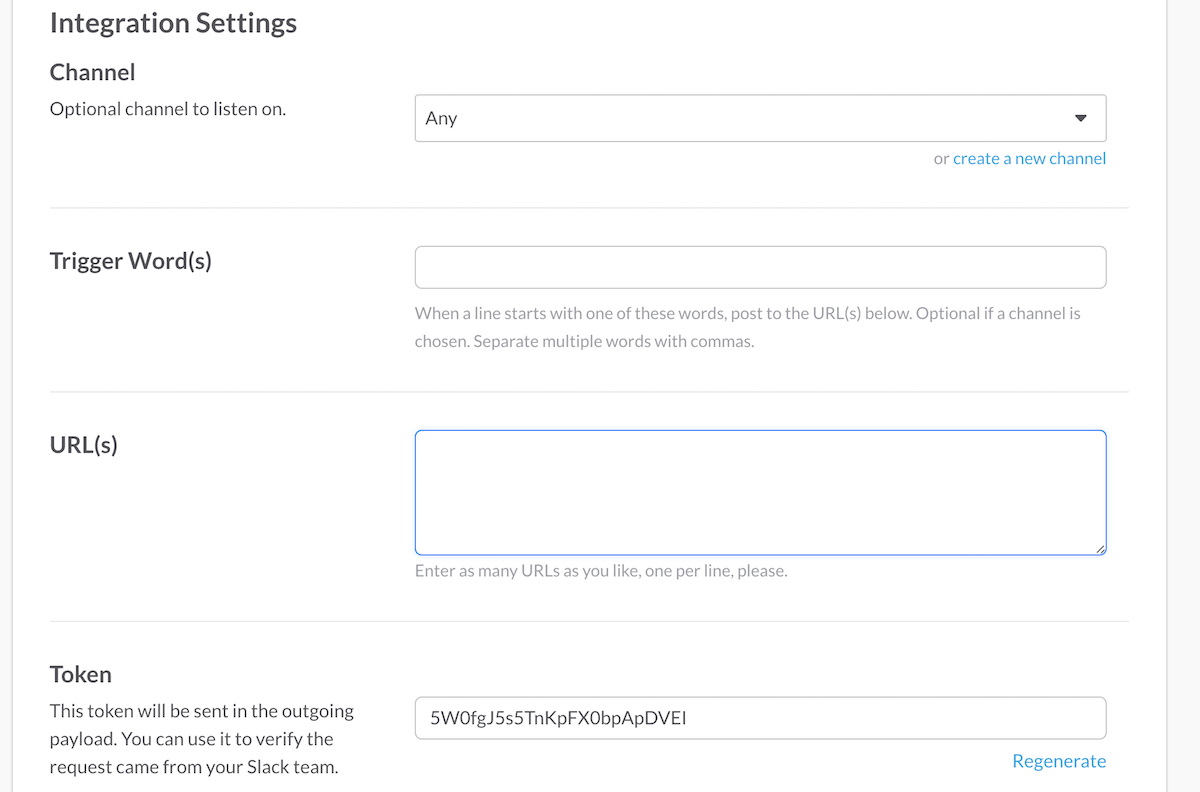
Scroll down to the Integration Settings section.

You can either have your bot listen to all channels, or listen only in a specific channel. If you select "Any", you will have to enter one or more "trigger words" that your bot will respond to. If you select a specific channel though, your bot can respond to any messages in the channel, although you may still enter "trigger words" if you only want the bot to respond to certain messages. Further down on the page you can customize the name and icon that your bot will use when posting to Slack.

We will connect your bot to Slack in the next step. Take note of the "Token" and "Customize Name" from this page, you will need them in the next step.

Step 5 - Setup Bot

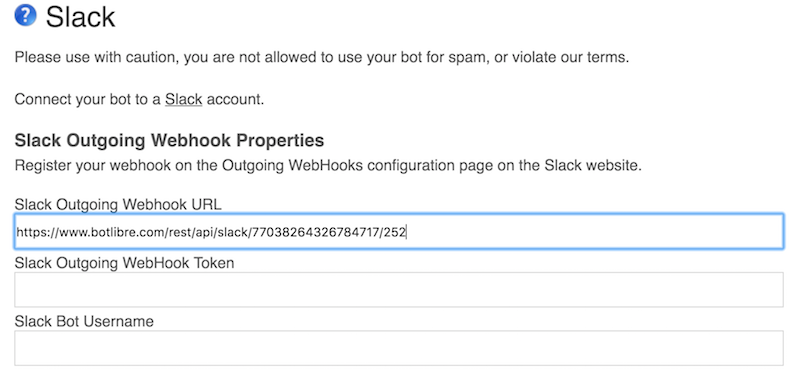
Return to the Bot Libre website and proceed to your bot's admin panel. Click on "Slack" to view Slack settings for your bot.

Enter the "Token" from the previous page into the "Slack Outgoing WebHook Token" field. You may enter the custom name you set on Slack into the "Slack Bot Username" field to have your bot only respond to messages directed at it or mentioned in. 

Next, copy the URL from the "Slack Outgoing Webhook URL" field to your clipboard. Press "Save" to save your bot settings.

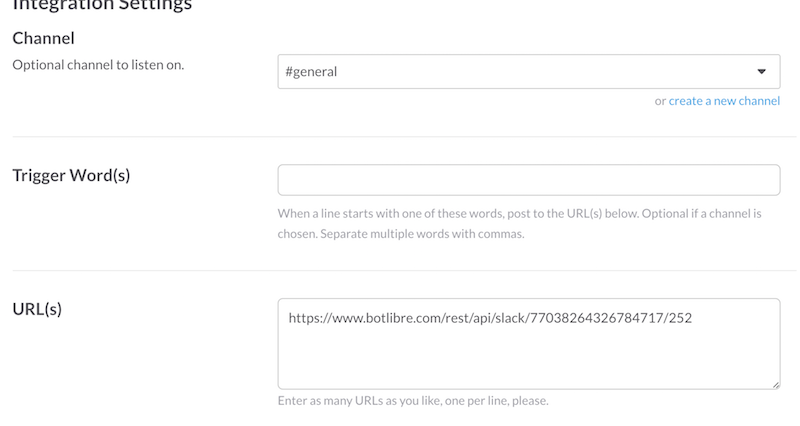
Return to the Slack Outgoing Webhooks integration settings page on the Slack website from the previous step. You will need to paste the URL from your clipboard into the "URL(s)" field.

Press the "Save Settings" button at the bottom to complete the setup. At this point, your bot will be now be able to communicate with users on the Slack channel you have set up above! You may stop here if that is all you want your bot to do.

If you want your bot to automatically post from an RSS feed or make other automatic posts, continue with the steps below.

Step 6 - Create Incoming Webhook Integration

Return to the Make a Custom integration screen on Slack, and select "Incoming WebHooks". 


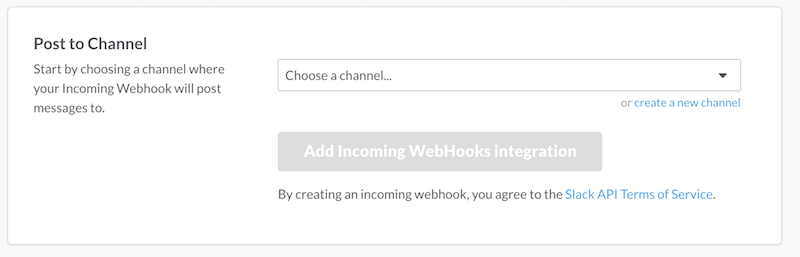
Select the channel you would like the bot to post to, then click the "Add Incoming Webhooks integration" button.

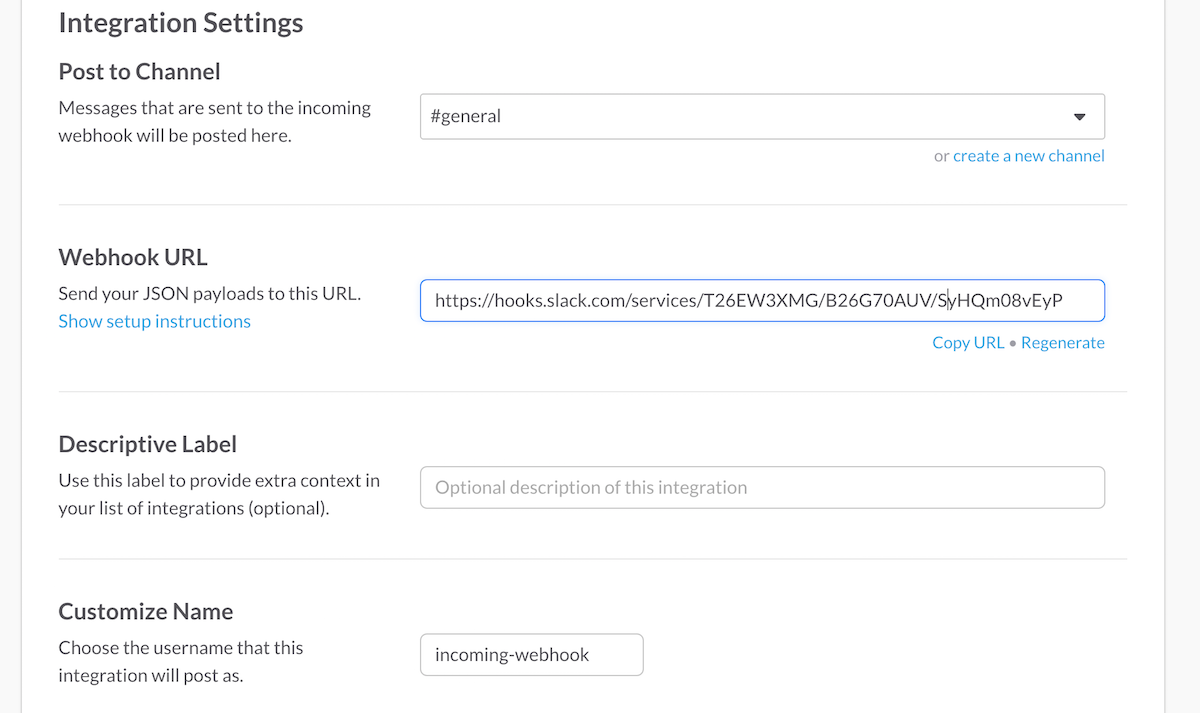
Scroll down to "Integration Settings". You can customize the name and icon that your bot will post as here.

Copy the "Webhook URL" here to your clipboard. Click the "Save Settings" button, and then return to the Bot Libre website and to your bot's Slack admin page.

Step 7 - Setup Bot RSS Feeds and Autopost

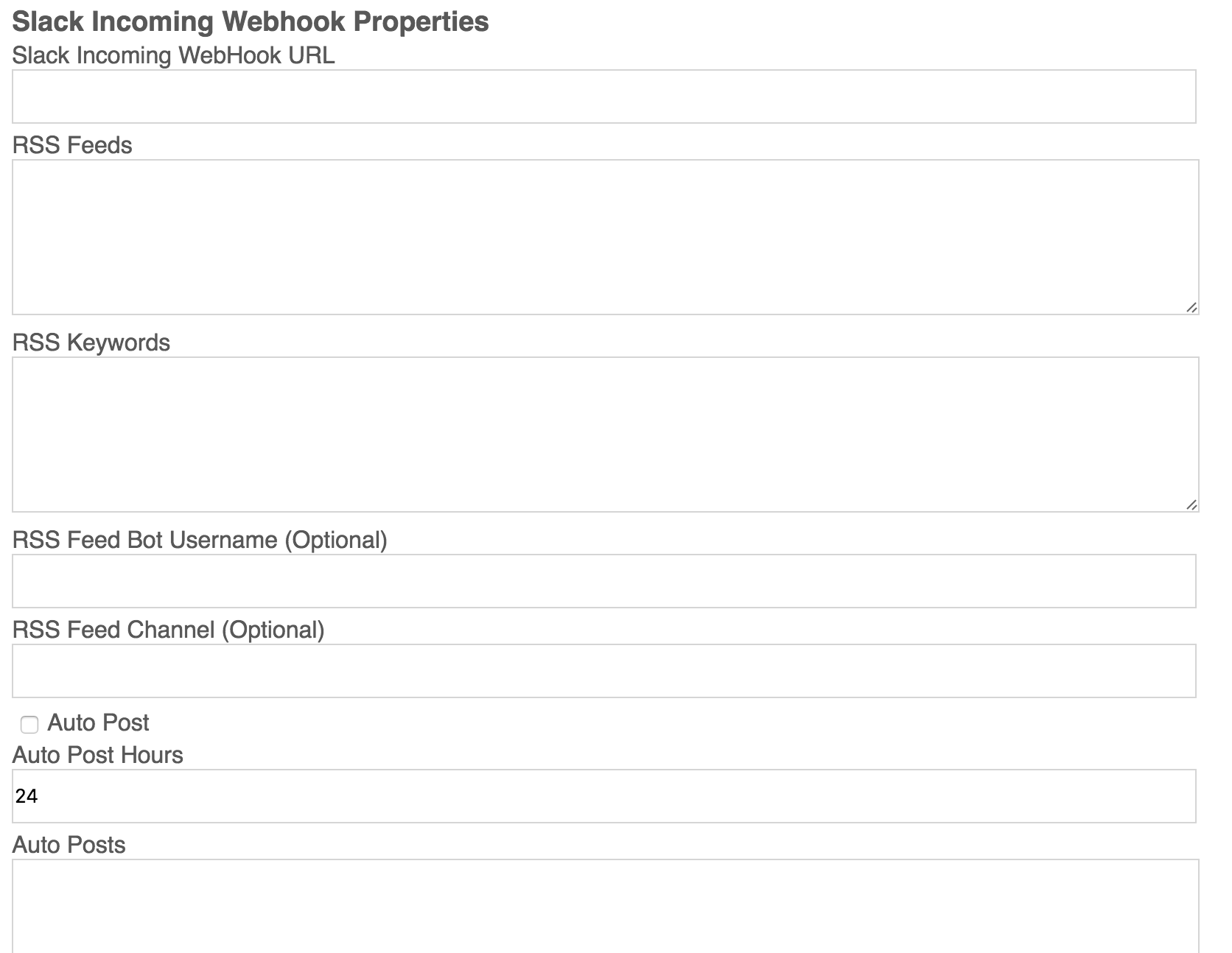
Paste the "Webhook URL" from your clipboard into the "Slack Incoming WebHook URL" field.


Enter the URL's of RSS feeds you would like your bot to post into the "RSS Feeds" field, each separated by a new line. You may enter keywords into the "RSS Keywords" field to have your bot only posts RSS feeds that have one of your keywords in the title. You can also optionally enter a different Bot Username or Channel to post the RSS feeds to that will override the bot name and channel set up on the Incoming Webhooks settings on the Slack Website.

Select the "Auto Post" checkbox if you want your bot to automatically post to a Slack channel at set intervals. You can set the time between auto posts in the "Auto Post Hours" field. In the "Auto Posts" field, you can enter posts that your bot will select from when it autoposts. Each post should be on a new line. You may use 'Self' or 'AIML' templates in these posts. You can also optionally enter a different Bot Username or Channel to auto post to that will override the bot name and channel set up on the Incoming Webhooks settings on the Slack Website.

Thursday, September 29, 2016

New HD 3D Animated Avatars

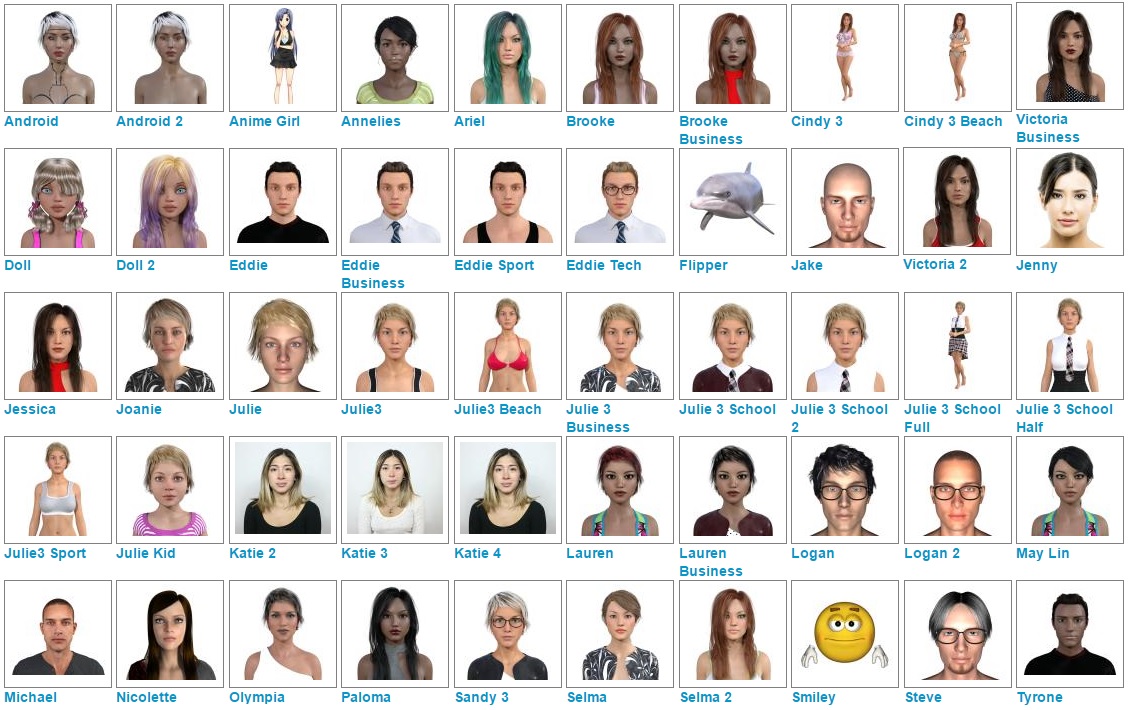
We have recently added many new HD 3D animated avatars to our avatar library.

Some new additions include, Annelies (African beauty), Doll (cute animated doll), Flipper (the dolphin), Eddie Tech (techie), Android, Victoria, Olympia, and many more.

All of the avatars are free to use through our JavaScript SDK, and can be embed on your own website with our text to speech, or connected to your bot. You can connect your bot to our avatars and speech, even if your bot is not hosted on Bot Libre.

If you would like a custom designed avatar for your bot or business, we can custom design you any 3D animated avatar available from Daz3D as part of our Platinum service.

Thursday, September 15, 2016

Connect with your customers everywhere

It is no longer sufficient for a business to only connect with their customers on their website. Customers now use a variety of different messaging and social media platforms, and expect to be able to connect with businesses through social media. If your business is not on Facebook, Twitter, Telegram, or other platforms you are missing engaging with your customers.

Keeping up with the various social media platforms can be a very time consuming and expensive task. Fortunately most social media platforms have open their doors for bots and automation. Bot Libre lets you connect with your customers everywhere, 24x7, and keep your content current across all your social media platforms.

Bot Libre supports bots and automation on many different social media platforms. Instead of having to maintain your businesses presence on many different social media platforms, you can create a bot once, and deploy it on many different social media platforms to chat with your customers, and update content from an RSS feed, or automated posts.

Bot Libre supports connecting bots to Facebook Messenger, Twitter, Telegram, Slack, SMS, IRC, email, web, and mobile. We are also adding support for more platforms every month, and if we are missing a platform that you need support for, just let us know, and we can add support for you.

Bot Libre makes it easy to create and train a bot, without requiring any programming. Bot Libre also makes it easy to integrate with social media platforms, and provides all the hosting and integration, no programming or third party services are required.

Bot Libre provides step by step "how to" articles to help you integrate your bot with many different social media platforms. If you're not that technical, then you can subscribe to our Platinum or Enterprise service, and let us build your bot for you and integrate it with your social media.

For more information see:

Friday, August 12, 2016

Annoucing Bot Libre for iOS 2.0

The Bot Libre iOS app has been updated with a large amount of new features.

The Bot Libre iOS app allows you to create, train and share your own chat bot from your iPhone, iPod or iPad. The chat bots have artificial intelligence and are capable of learning through conversation. You can create your own bot, or chat with other peoples bots. There are thousands of bots on Bot Libre to talk to.

Bot Libre for iOS 2.0 now includes:

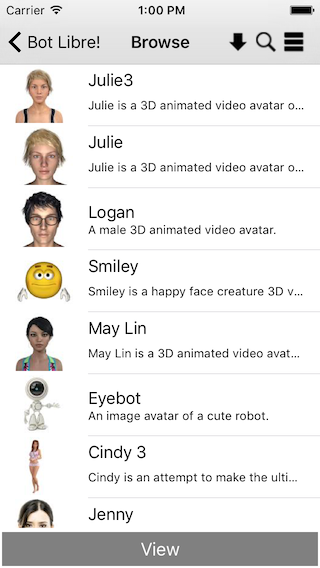
  • Avatar library to choose your bot's avatar from a large selection 3D and video animated avatars.
  • Avatar editor to create your own avatar.
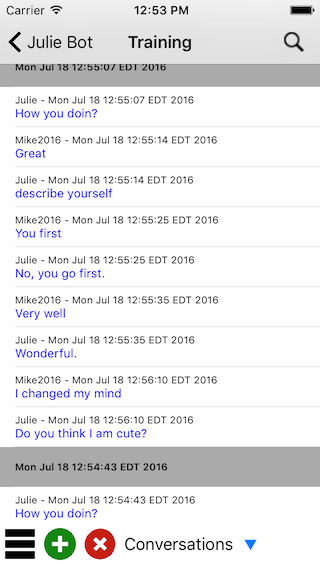
  • Training and chat logs
  • New learning options
  • Forums - Create your own forum to share with your friends, colleagues, or customers.
  • Rate and vote up/down content
  • Domains - Create your own personal or business space to host your chat channels, forums, and bots.

When you connect to Bot Libre, you can now choose to browse or create bots, forums, or domains.

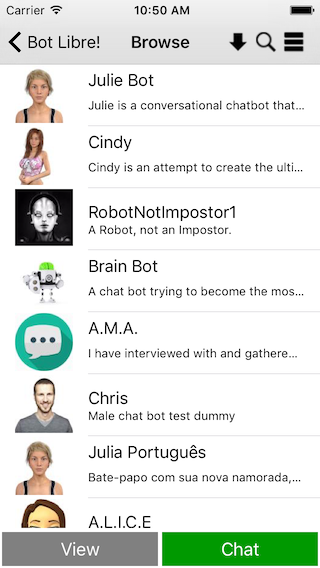
Browse

Browse lets you search content by category, tag or filters, and order the results by several different options. 

Bot Admin

Several new bot admin options have been added.

  • Users - Control who can access your bot, and who can administer it.
  • Avatar - Select and edit the avatar used by your bot.
  • Voice - Choose and configure the voice, and language used by your bot.
  • Training/Chat logs - Set your bot's greeting phrases, and default phrases to use when it does not know any response. Train your bot with question/answer pairs.
  • Learning - Configure how your bot learns, and who is learns from.


Avatars

Browse a large selection of 3D and video animated avatars to use with your bot. Or use the avatar editor to create your own avatar by uploading your own images or video.


Forums

You can now browse or create your own forums. You can ask questions, and find answers on the Bot Libre forums, browse other user's forums, or create your own forums. You can create public or private forums, and can control who can access your forum.


Domains

Create your own personal or business space to host your chat channels, forums, and bots.

The Bot Libre iOS app accesses the same bots, forums, and servers as the Bot Libre website. You can access the bots you create from the app on the web. Bot Libre also provides a free open source iOS SDK, and web API that lets you build your own iOS mobile app.

Paid commercial hosting is also available through Bot Libre for Business.